Retropa / Import
Your games, in four ways.
Retropa ships without games and without BIOS files. This page covers every way to bring your own in, what each system accepts, and what to do when a game asks for something it does not have.

Free to download. Optional in-app purchases. iOS 18 or later.
From the Files app, AirDrop or another app
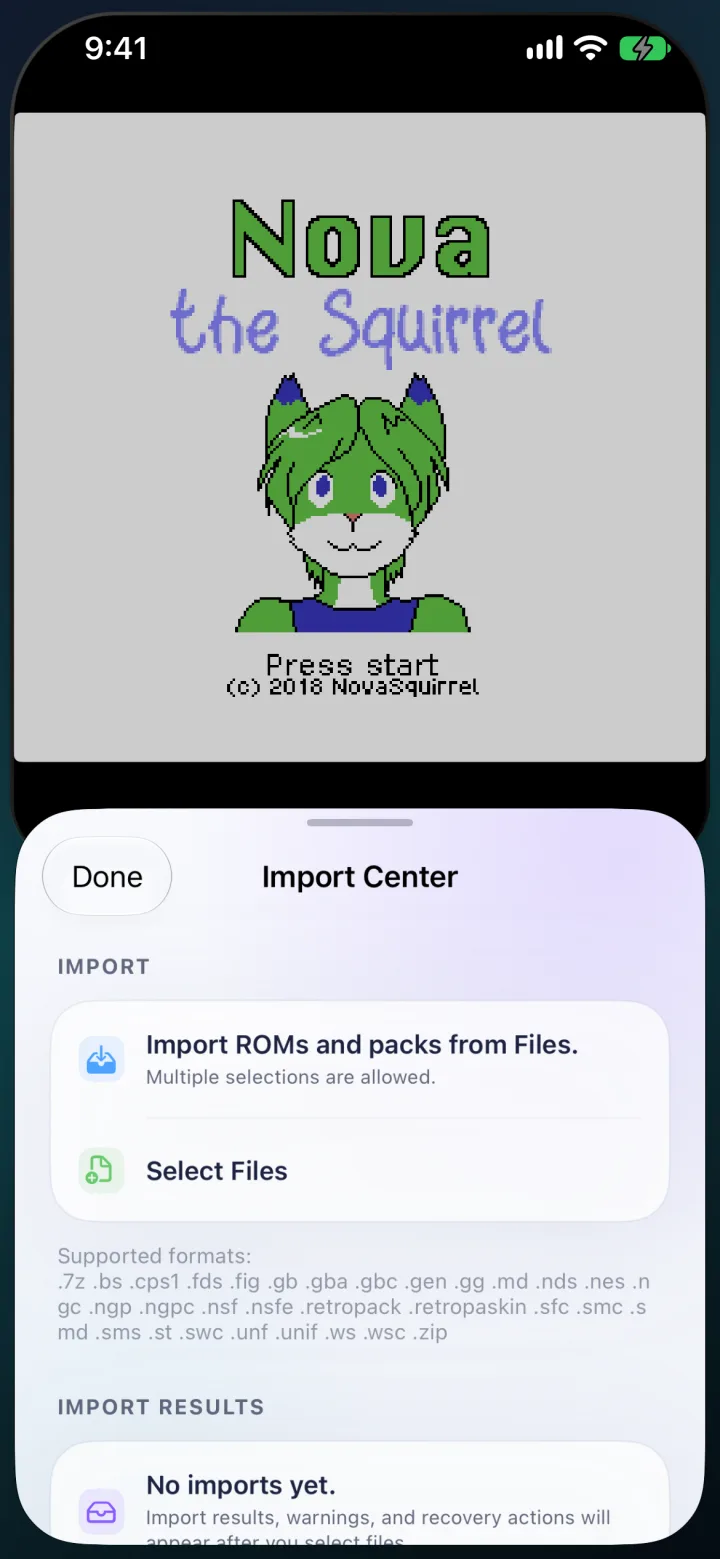
Open the Importer from the in-game menu and choose Select Files. You can pick one file or many at once, including ZIP bundles and Retropa packs. Each import produces a result card that says what was added, skipped or rejected, with a next step when something failed.
- Game Boy, GBA, NES, Super NES, ZIP and 7Z files can also be opened in Retropa directly from AirDrop or the share sheet of another app.
- If a file sits in iCloud Drive, let it finish downloading first — a placeholder cannot be imported.
- Renaming a file does not change which system it belongs to.
Over Wi‑Fi from a computer
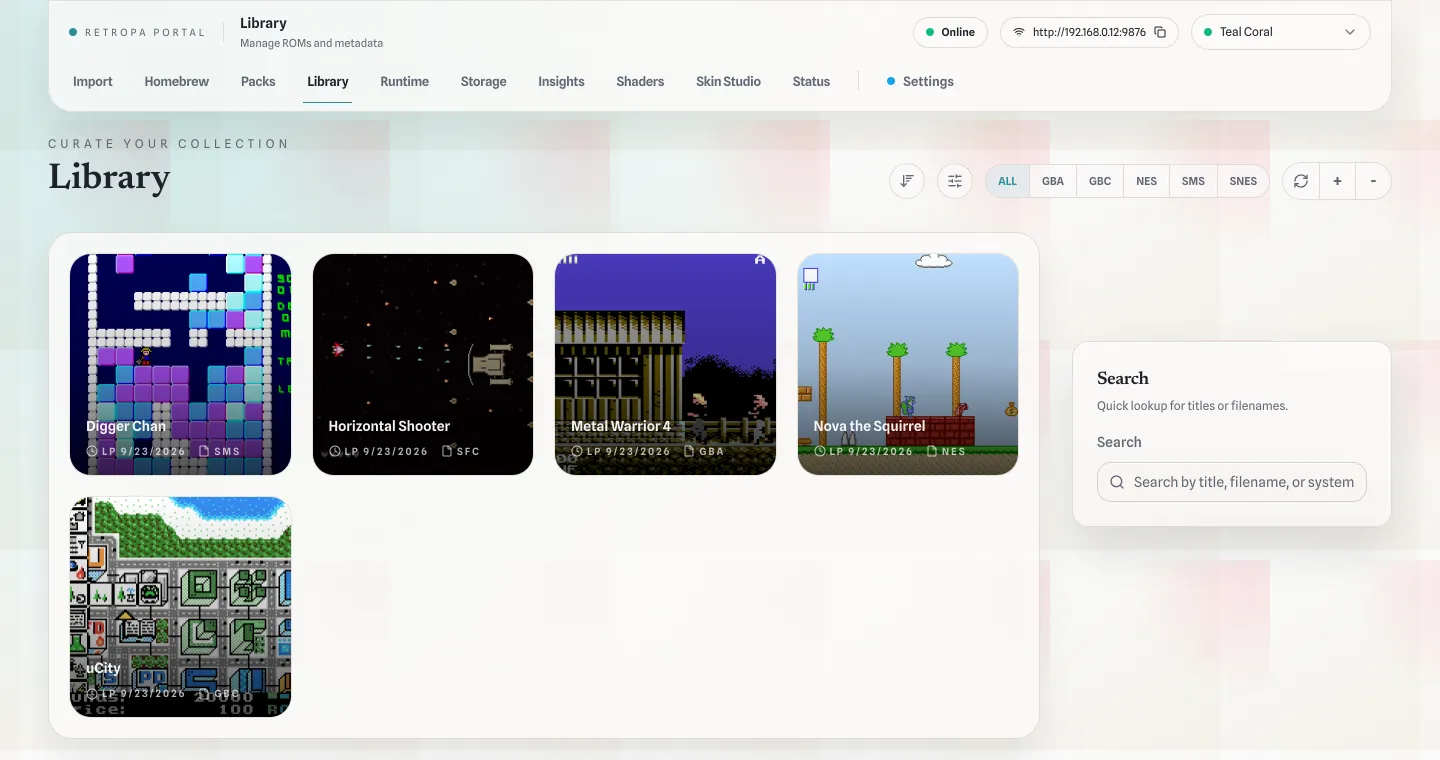
Choose Portal in the in-game menu and start it. Retropa shows a local address; open it in any browser on a computer on the same Wi‑Fi network. Drop games, ZIP bundles, 7Z arcade sets, Retropa packs and skins into the Import tab — mixed selections are fine. The Portal also manages your library, BIOS files, storage, skins and settings from the big screen.
- The Portal only answers devices on your local network. Stop it when you are done.
- Keep Retropa open while transferring; iOS may suspend the Portal in the background.
With the built-in browser
Open Browser from the menu, go to a site that offers files you are allowed to download, and download as usual. Retropa intercepts ROM and ZIP downloads and sends them to import, then removes the temporary copy. Favorite sites stay one tap away, and the Download Center shows progress.
From the Homebrew catalog
The catalog lists homebrew, public-domain and redistributable demo games for the systems Retropa supports. Pick one and it downloads and imports on its own — a quick way to try skins, filters and controls before you bring your own library.
File formats by system
Each system accepts its own file types. Handheld and console games can also arrive inside ZIP or 7Z archives; arcade sets stay zipped exactly as they are.
| System | Files |
|---|---|
| Game Boy Advance | .gba |
| Game Boy · Game Boy Color | .gb .gbc |
| Nintendo DS (beta) | .nds |
| NES | .nes .fds .unf .unif .nsf .nsfe |
| Super NES | .sfc .smc .swc .fig .bs .st |
| Genesis · Mega Drive | .md .gen .smd |
| Master System · Game Gear | .sms .gg |
| WonderSwan · Color | .ws .wsc |
| Neo Geo Pocket · Color | .ngp .ngpc .ngc |
| Arcade | .zip .7z (.cps1) |
| Retropa packs and skins | .retropack .retropaskin |
BIOS files
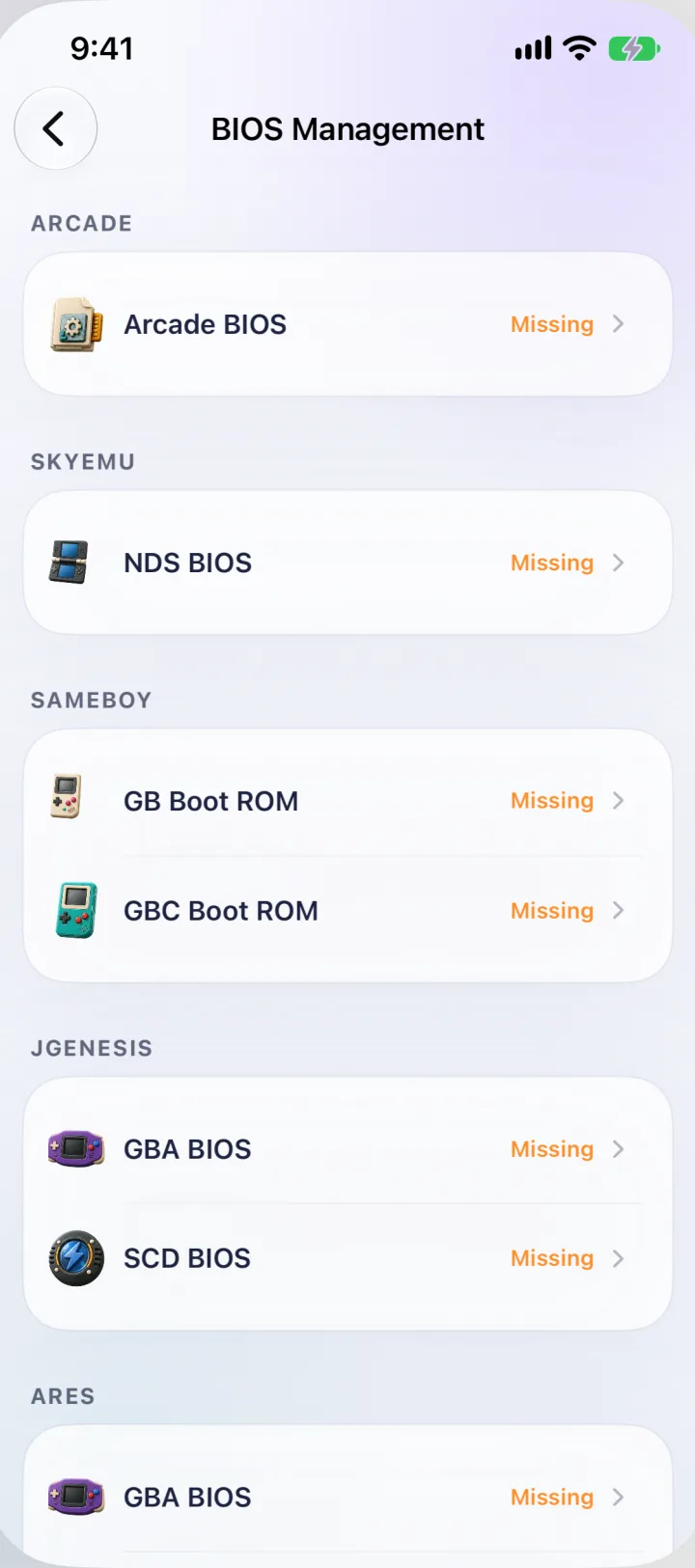
The default cores for Game Boy, GBA, NES and Super NES run without a BIOS. Some alternative cores and systems use one. Settings › Emulation › Cores › BIOS Management groups every BIOS by the core that uses it and marks each one present or missing. If a game needs a file you have not added, Retropa stops at launch and takes you straight to the right entry.
| BIOS | Used by | Files |
|---|---|---|
| GBA BIOS | JGenesis, ares (alternative GBA cores) | .bin .rom .bios |
| Neo Geo Pocket · Color BIOS | ares | .bin .rom .bios |
| NDS BIOS | SkyEmu | .bin .rom |
| GB · GBC boot ROM (optional) | SameBoy | .bin .rom |
| Arcade BIOS | Arcade — for example QSound, Neo Geo or PGM | archive or ROM files |
- A BIOS for one system never substitutes for another.
- Retropa does not provide BIOS files.
Arcade sets
Arcade games arrive as ZIP or 7Z archives named after the game's set. A clone set may also need its parent set, and some boards need a shared BIOS archive. Keep archives intact rather than extracting them.
- When a set is incomplete, Retropa lists the exact missing file names and tells you to add them to the right archive and import again.
- QSound files such as dl-1425.bin and qsound.bin are treated as arcade BIOS, separate from a game's own files.
- CPS III uses NO-CD sets. Running arcade games needs Retropa Plus.
Saves and covers
In-game saves and save states stay with each game. Save states belong to the core that made them, so switching cores keeps them on disk but hides them from the other core. Cloud Saves backs up and restores your save data with iCloud Drive, and save files can be imported and exported.
- Covers are matched by the file's own hash against an offline game database, so most libraries fill in by themselves.
- Cover Harvester (Retropa Plus) lets you pick art from a web page, and the Portal can edit titles and metadata.
Import questions
Can I import many games at once?
Yes. The Files picker allows multiple selections, and the Portal accepts mixed drops of games, ZIP bundles, 7Z arcade sets and packs.
Do I need to unzip games before importing?
No. Retropa imports ZIP and 7Z archives. Keep arcade sets zipped exactly as they are.
Why does a game show in Files but not import?
It is usually an iCloud placeholder that has not downloaded yet, or a format for a different system. Let the download finish, check the extension against the table above, and read the result card for the exact reason.
Where do BIOS files go?
Settings › Emulation › Cores › BIOS Management, or the BIOS page in the Portal. Each file is checked against the core that uses it.
Who can reach the Wi‑Fi Portal?
Only devices on the same local network. Requests from outside your network are refused. Stop the Portal when you finish transferring.
Does Retropa include games or BIOS files?
No. Import only files you have the right to use, or start with the free, legally distributed games in the Homebrew catalog.