
Retropa / Cloud Backup
Your saves, backed up to your own cloud.
Retropa copies your manual saves into verified snapshots on the storage you choose: iCloud Drive, Google Drive, Dropbox, OneDrive, or a server of your own. Restore on another iPhone or iPad and your progress is merged in, not overwritten. With a drive, your game files can come along too.

Free to download. Optional in-app purchases. iOS 18 or later.
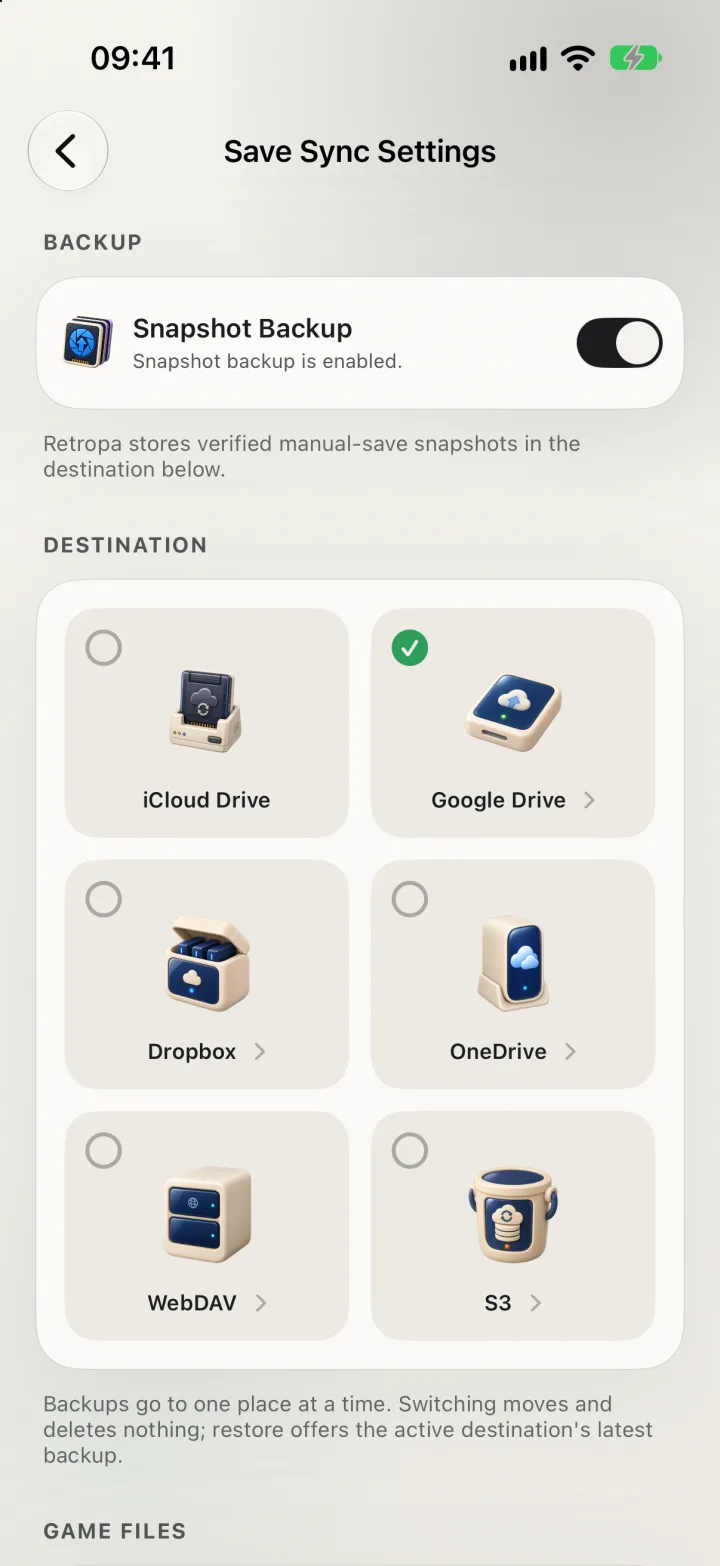
Pick where backups go
Open Settings, then Cloud Saves, then Save Sync Settings. Backups go to one place at a time, and you can change it whenever you like.
- iCloud Drive, Google Drive, Dropbox and OneDrive are free to use as a destination.
- Switching destinations moves and deletes nothing. Backups already in the old one stay there and stop updating, and restore offers the new destination's latest backup.
- Sign in once per drive. Keeping more than one account for the same destination needs Retropa Plus.
Verified snapshots of your manual saves
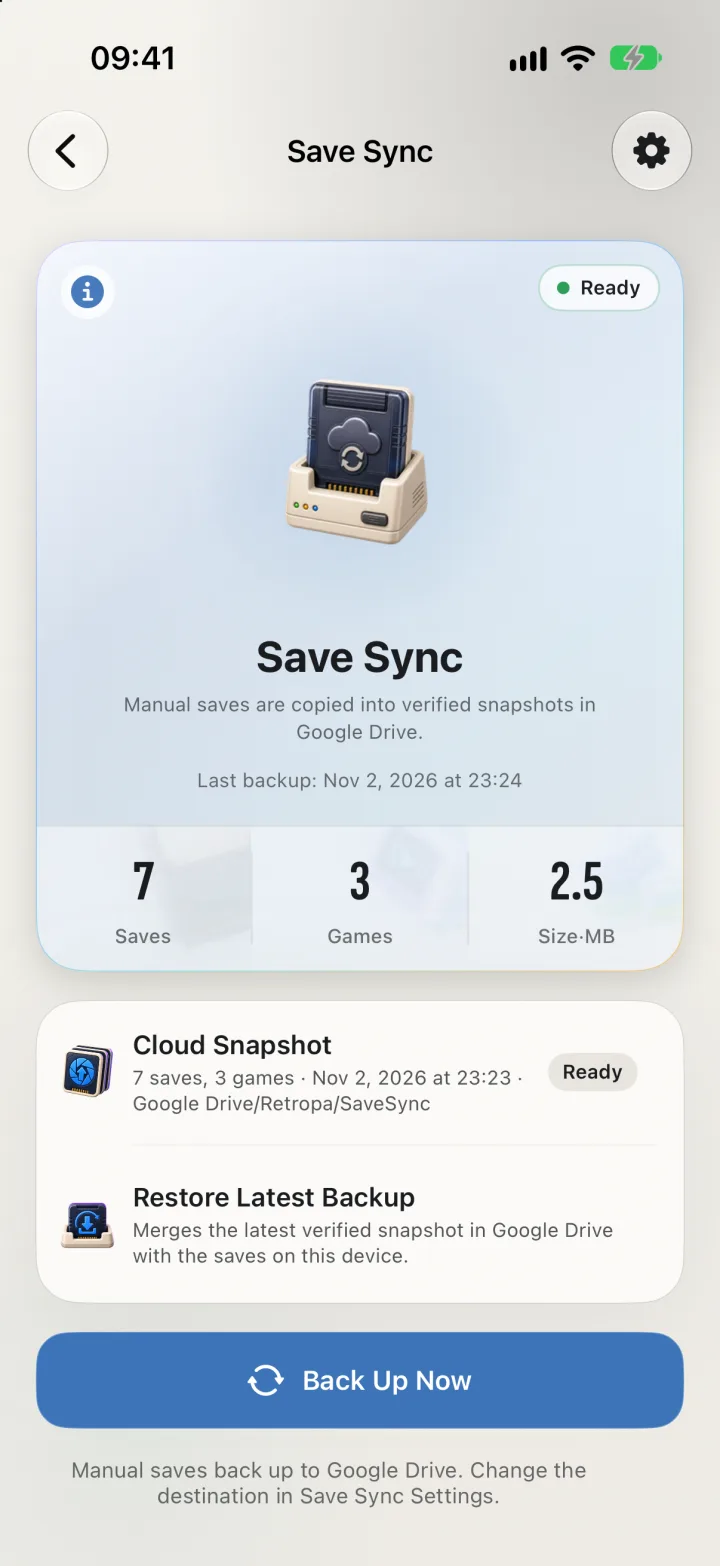
Tap Back Up Now, and Retropa copies every manual save into a snapshot, checks each file it wrote, and only then marks the snapshot as the latest. The Save Sync page shows when the last backup ran, how many saves and games it holds, and the folder it lives in.
- Auto saves keep your place on this device; the saves you make yourself are the ones that back up.
- A backup that is cut short never replaces the last good snapshot.
- Backups sit in a Retropa folder in your account, which you can open with the provider's own app.
Restore adds, it does not overwrite
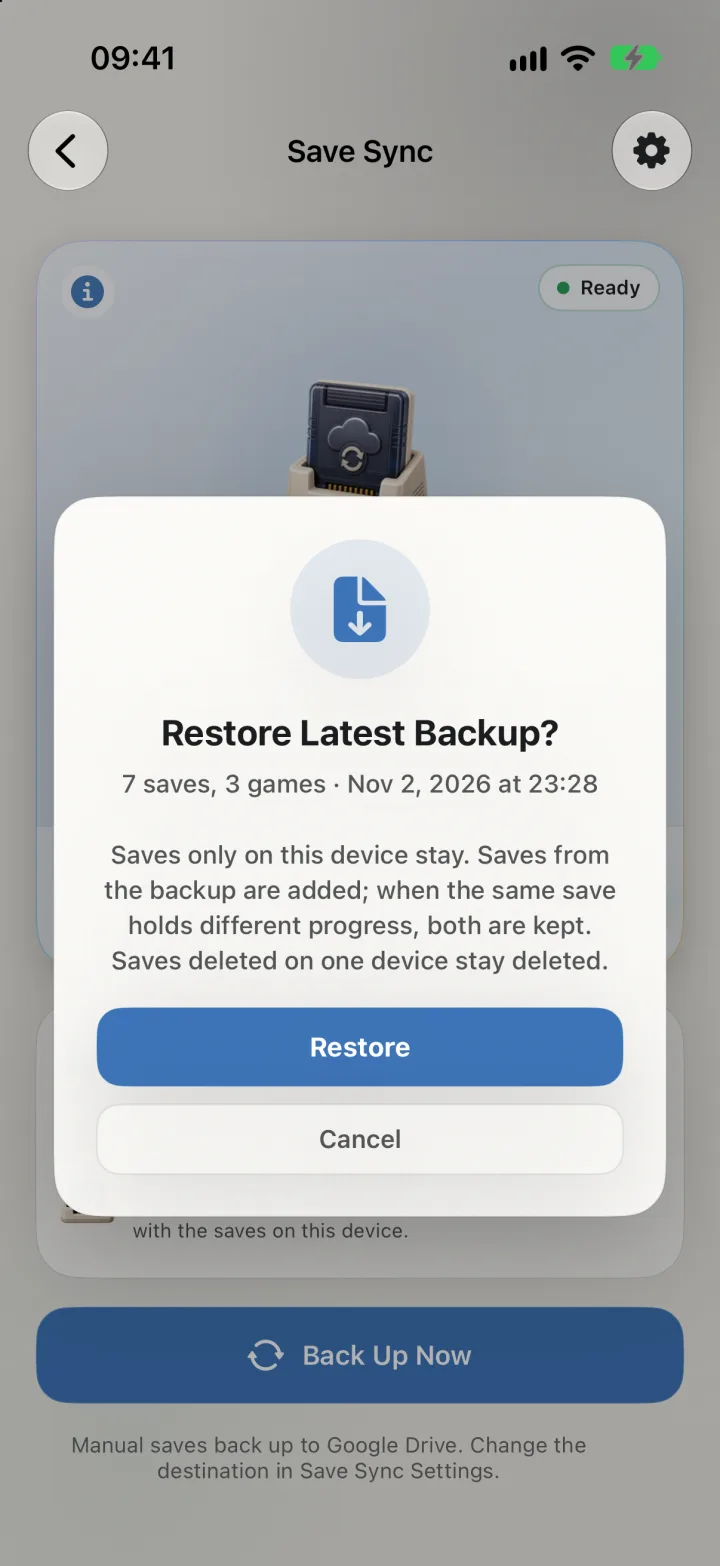
Restore Latest Backup merges the snapshot with the saves already on the device, so a new phone, a reinstall or a second iPad picks up where you left off.
- Saves only on this device stay.
- Saves from the backup are added. When the same save holds different progress on each side, both are kept.
- Saves you deleted on one device stay deleted.
Back up without thinking about it
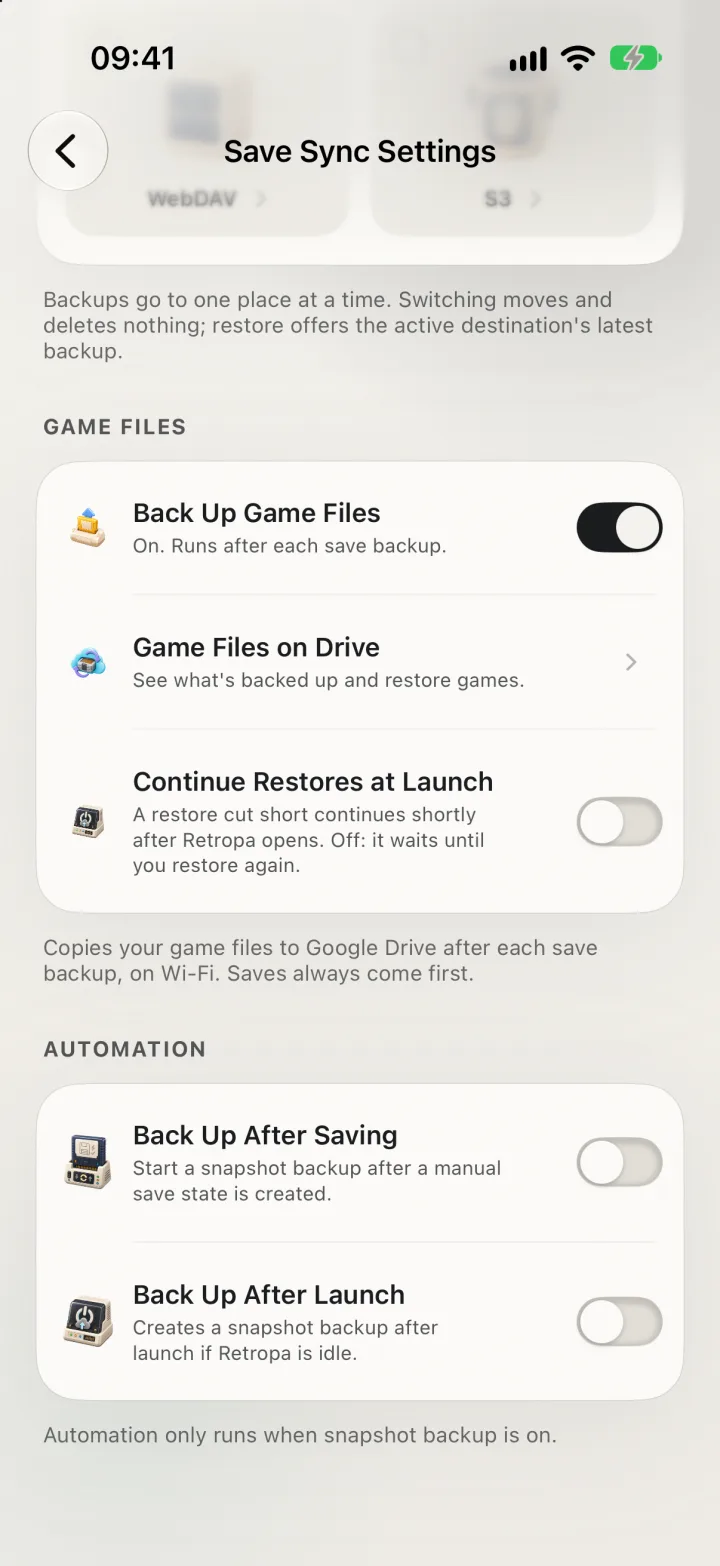
Two switches in Save Sync Settings run backups for you, and only while snapshot backup is on.
- Back Up After Saving starts a backup after each manual save state.
- Back Up After Launch backs up shortly after Retropa opens, when nothing else is running.
Game files on your drive
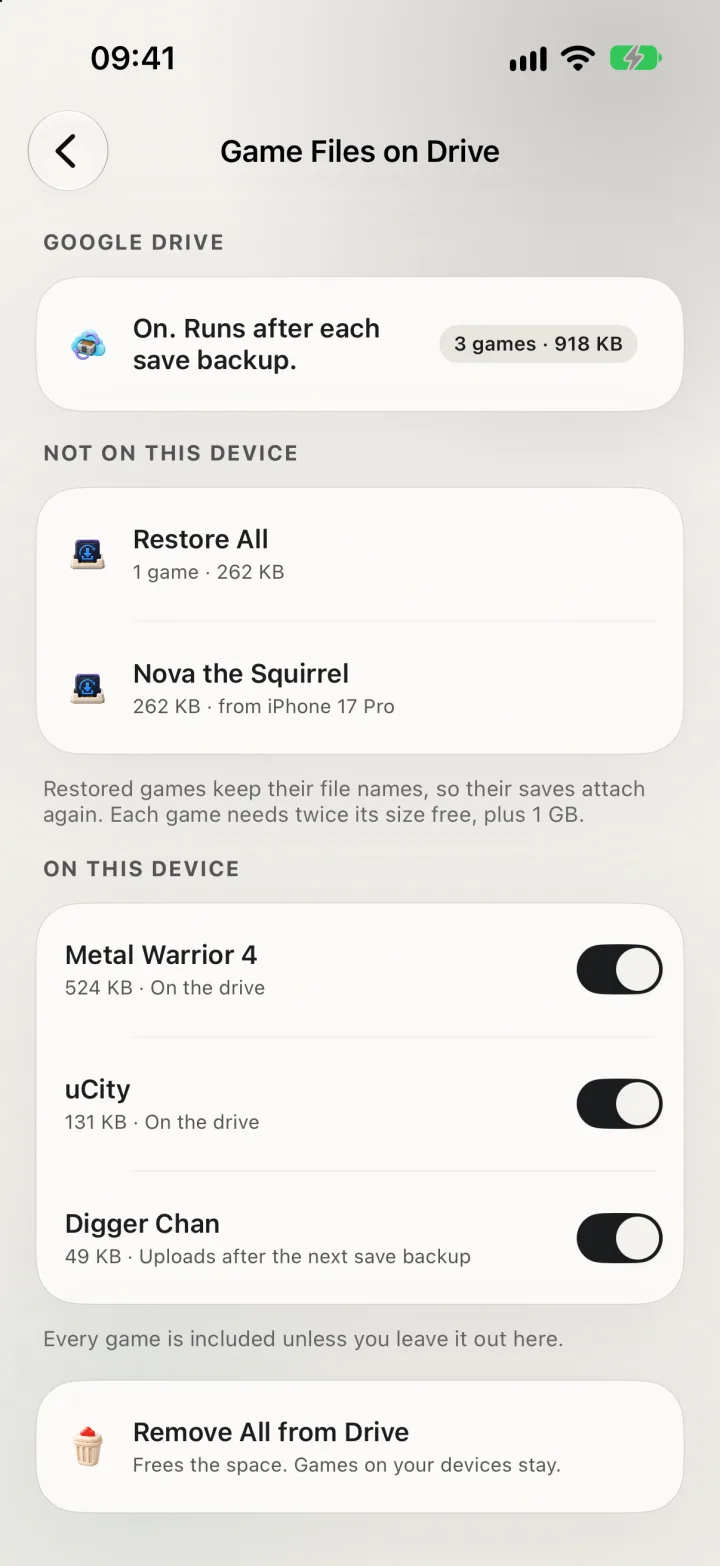
Turn on Back Up Game Files and Retropa copies your game files to the same drive after each save backup, so a new device can get your library back with your saves. Saves always go first.
- Uploads run on Wi‑Fi only, one game at a time, and carry on in the background.
- Every game is included unless you leave it out. Remove All from Drive frees the space and leaves the games on your devices.
- Games backed up from another device show under Not on This Device. Restore one, or all of them; each keeps its file name, so its saves attach again.
- Game file backup works with Google Drive, Dropbox, OneDrive and your own server, not with iCloud Drive.
Your own server: WebDAV or S3Plus
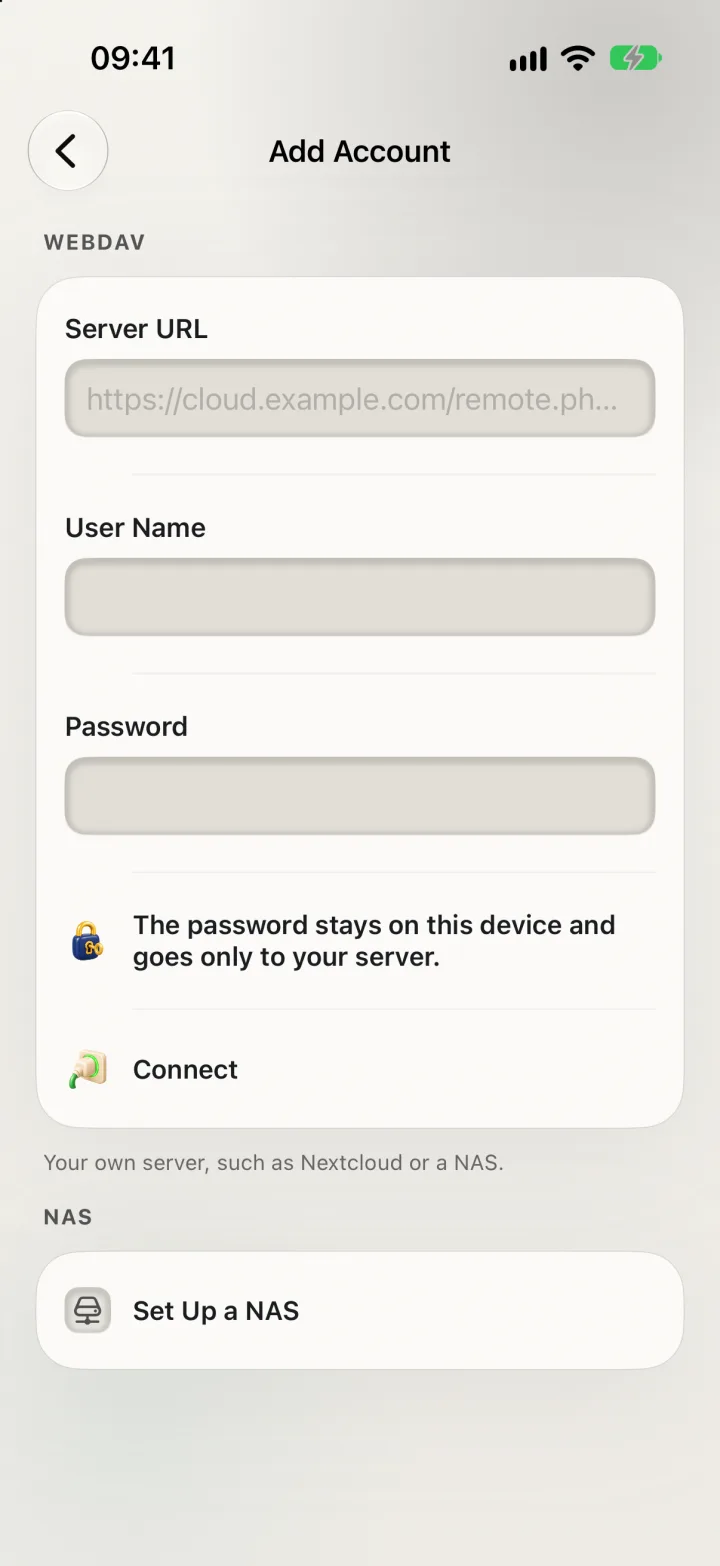
With Retropa Plus, backups can go to a WebDAV server such as Nextcloud or a NAS, or to S3-compatible storage. Set Up a NAS shows the steps for Synology, QNAP, TrueNAS and Unraid, then fills in the address for you.
- The password or access key stays on this device and goes only to your server.
- Snapshots, restore and game files work the same way as on a drive.
Your storage, not ours
Backups travel directly between your device and the storage you chose. They never pass through or stay on Retropa's servers.
- Google Drive access is limited to the files Retropa creates. Dropbox and OneDrive access is limited to Retropa's app folder.
- Sign-in tokens and server passwords stay in the device's Keychain.
- Removing an account in Retropa leaves your local saves and the backups in your account alone. You can also end Retropa's access from your Google, Dropbox or Microsoft account settings.
Cloud backup questions
Is cloud backup free?
Yes, with iCloud Drive, Google Drive, Dropbox or OneDrive. WebDAV, S3 and more than one account per destination need Retropa Plus.
Can Retropa see my saves?
No. Backups go straight from your device to your own account or server, and Retropa's servers never receive them.
How do I move my saves to a new iPhone or iPad?
Back up on the old device, sign in to the same destination on the new one, and tap Restore Latest Backup. With game file backup on, restore your games from Game Files on Drive as well.
Can a restore overwrite my progress?
No. Restore merges: saves only on this device stay, and when the same save holds different progress, both are kept.
Does game file backup use mobile data?
No. Game files upload and download on Wi‑Fi only. Automatic save backups to a drive also skip mobile data and Low Data Mode; Back Up Now runs on any connection.