
Retropa / Controller guide
Connect a PS5, Xbox or Switch controller to your iPhone.
iPhone and iPad pair with the console controllers you may already own. Each controller has its own way into pairing mode; after that, iOS remembers it. This guide walks through each one, the problems people run into most, and what to play once it is connected.

Free to download. Optional in-app purchases. iOS 18 or later.
PS5 DualSense
Hold the PS button and the Create button (left of the touchpad) together until the light bar flashes quickly. On the iPhone, open Settings, then Bluetooth, and tap DualSense Wireless Controller under Other Devices. The light bar stays lit once it is paired. A DualSense Edge pairs the same way.
- If the light bar pulses slowly instead of flashing quickly, the controller is looking for its console; keep holding both buttons.
- The DualSense works from iOS 14.5 and the DualSense Edge from iOS 16.3, so every device that runs Retropa (iOS 18) supports both.
PS4 DualShock 4
Hold the PS button and the Share button (left of the touchpad) together until the light bar starts flashing. In Settings, then Bluetooth, tap DUALSHOCK 4 Wireless Controller. Both the original and the later DualShock 4 models work.
- Flashing means pairing mode; a steady light means connected.
- Pairing with the iPhone unpairs nothing on the console, but the console may grab the controller back when it wakes nearby.
Xbox Wireless Controller
Turn the controller on with the Xbox button, then hold the small pairing button on its top edge until the Xbox button flashes quickly. In Settings, then Bluetooth, tap Xbox Wireless Controller. Controllers for Xbox Series X|S work, as do Xbox One controllers with Bluetooth, the Elite Series 2 and the Adaptive Controller.
- An Xbox One controller has Bluetooth when the plastic around the Xbox button is part of the front, not the top piece with the bumpers.
- If it will not pair, update its firmware from an Xbox or from the Xbox Accessories app on a Windows PC.
Switch Pro Controller and Joy-Con
Hold the small sync button on the top of the Pro Controller, next to the USB-C port, until the player lights run back and forth. In Settings, then Bluetooth, tap Pro Controller. Each Joy-Con pairs on its own the same way, with the sync button on its rail, and appears as Joy-Con (L) or Joy-Con (R).
- Switch controllers need iOS 16 or later.
- A single Joy-Con held sideways has few buttons; games that use shoulder buttons are easier on a Pro Controller.
Backbone, Razer Kishi and other clip-on controllers
Controllers that hold the phone between two grips plug into its USB-C or Lightning port, so there is nothing to pair: attach the phone and press a button. Bluetooth controllers sold for iPhone, such as many 8BitDo models, pair through Settings and Bluetooth like the others; their manual says which mode to use for iOS.
- Check that a clip-on controller fits your phone's size and port before you buy.
- Look for iOS or MFi (Made for iPhone) on the box of a Bluetooth controller.
When a controller will not pair or keeps dropping
Most problems come from the controller still talking to its console, or from an old pairing record on the phone. Work through these in order.
- Forget the old pairing: in Settings, then Bluetooth, tap the info button next to the controller, choose Forget This Device and pair again.
- Turn the console off or move away from it: a PS5 or Xbox that wakes nearby can take the controller back.
- Charge the controller: a low battery causes dropped connections and missed presses.
- Back to the console: a PS5 or PS4 controller needs one USB cable connection to the console; an Xbox controller needs the pairing buttons pressed on both again.
- To change buttons for iOS as a whole or for one app, open Settings, then General, then Game Controller.
Play retro games with it in Retropa
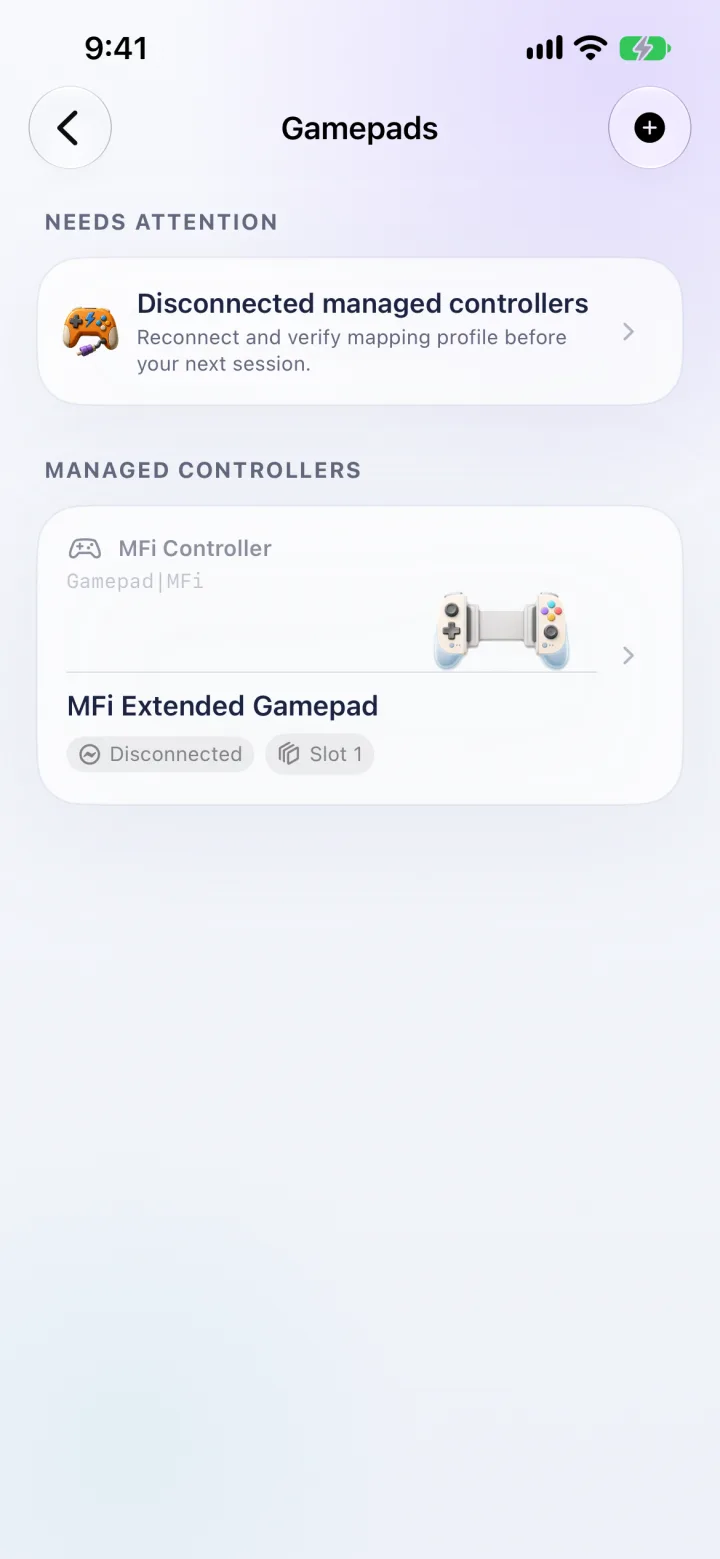
Retropa works with every controller iOS supports. Connect it in iOS first, then open Retropa: the controller appears in Settings, then Gameplay, then Gamepads, where you can test each button and set the mapping for each system. Touch controls stay on alongside it, which matters for Nintendo DS games.
Controller questions
Which controllers work with iPhone?
The PS5 DualSense and DualSense Edge, the PS4 DualShock 4, Xbox Wireless controllers with Bluetooth (including the Elite Series 2 and the Adaptive Controller), the Switch Pro Controller and Joy-Con, and controllers made for iPhone, including clip-on ones such as Backbone and Razer Kishi.
Why does my PS5 controller not show up in Bluetooth?
It is not in pairing mode. Hold the PS button and the Create button together until the light bar flashes quickly; the PS button alone only wakes it for the console. If it still does not appear, turn the PS5 off so it cannot take the controller back.
Can I use a Switch Pro Controller on iPhone?
Yes, on iOS 16 or later. Hold the sync button on top until the player lights move, then tap Pro Controller in Settings, then Bluetooth.
Will the controller still work with my console?
Yes. Pairing with an iPhone does not change the controller. To use it with a PS5 or PS4 again, connect it to the console with a USB cable once; with an Xbox, press the pairing buttons on the console and on the controller.
What can I play with a controller on iPhone?
Many App Store games support controllers. Retropa adds the games you own for Game Boy, GBA, DS, NES, SNES, Genesis and PS1, arcade games with Plus, and free homebrew games from PackHub, all playable with the controllers above.