
Retropa / DOS
A DOS PC in your pocket.
Import a DOS game's ZIP and Retropa sets up a PC for it: a 486-class machine with VGA and SVGA graphics, Sound Blaster sound and DOS built in. Play on a full on-screen keyboard, a mouse or a trackpad, each in period designs you can restyle, or connect your own keyboard, mouse and controller.

Free to download. Optional in-app purchases. iOS 18 or later.
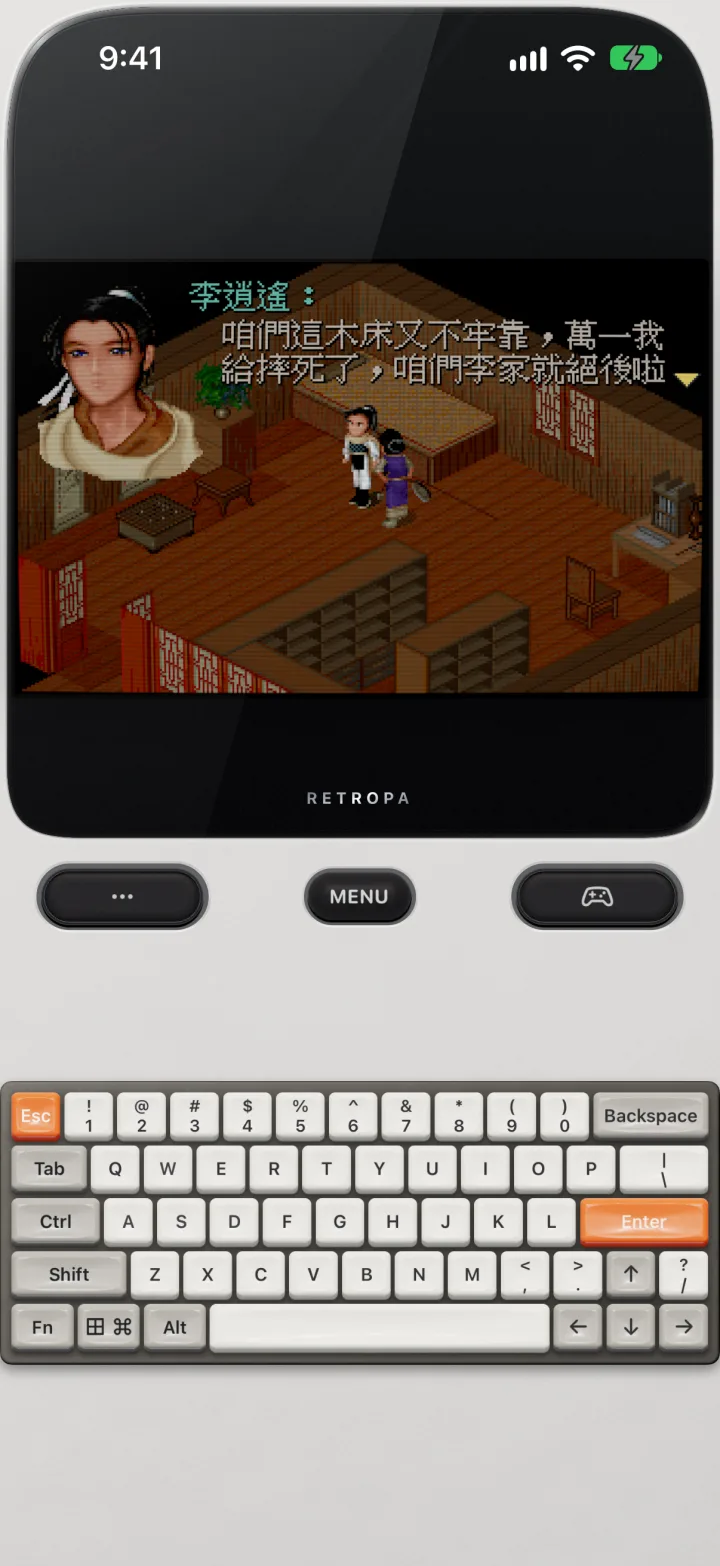
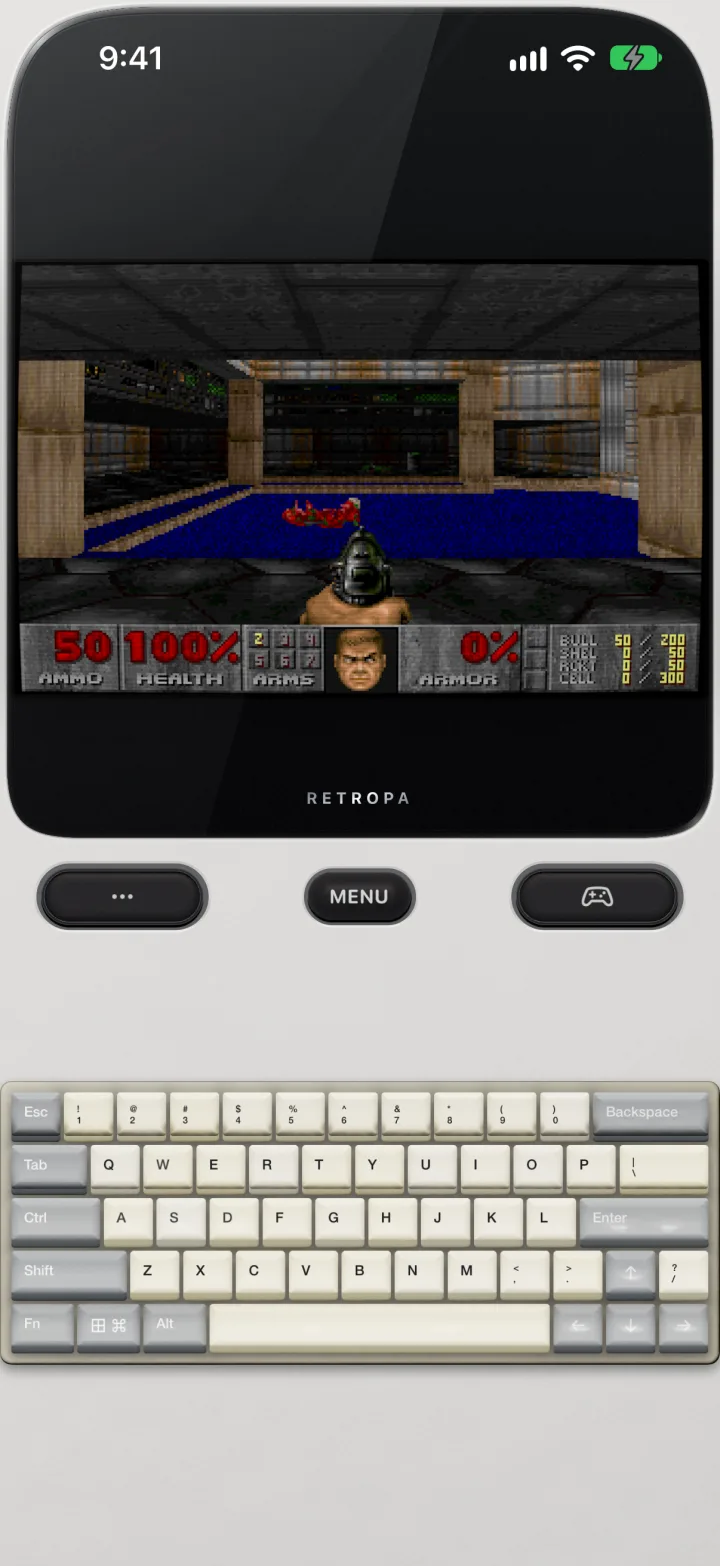
Shown here: 仙剑奇侠传 and DOOM
Both games run in Retropa on iPhone: 仙剑奇侠传 (The Legend of Sword and Fairy, 1995) at the inn in its opening, Chinese text and all, and DOOM (1993) in its first level. Enter on the on-screen keyboard moves 仙剑奇侠传's story on; in DOOM the arrows walk and turn, Ctrl fires and Space opens doors.
- The keyboard sits under the picture, so the game and every key fit on the screen together.
- Neither game is part of Retropa. Import only games you have the right to use.
The PC each game gets
Every DOS game starts on the same well-equipped PC, ready the moment you import it. There is nothing to install and nothing to configure.
| Part | What the game finds |
|---|---|
| Processor | A 486-class PC, quick enough for the games of the DOS years |
| Graphics | VGA and SVGA |
| Sound | Sound Blaster digital sound and FM music, plus the PC speaker |
| Memory | Conventional and extended memory, and expanded memory (EMS) when a game asks for it |
| Drive | A drive C: of its own, holding the game's files |
| DOS | Built in, so no DOS disks are needed |
| Controls | A full PC keyboard and a two-button mouse |
- When a game stops to say it needs expanded memory, Retropa pauses it and offers Restart with EMS. Your answer is kept for that game.
- A game Retropa has not tried yet still starts on the same PC, and a note on screen says so.
Import a DOS game
Zip the game's folder and import the ZIP like any other game: from the Files app, AirDrop or the Wi‑Fi Portal. Retropa finds the program that starts the game.
- With one program to start, the game is ready straight away. With several, Retropa asks the first time you play and marks the one it recommends. Choose DOS Program on the game's page asks again at the next launch.
- The ZIP you imported stays exactly as it was. The game plays from its own drive, and the files it writes stay with it.
- An archive holding only Windows programs is not a DOS game, and Retropa does not import it as one.
Sixteen keyboards
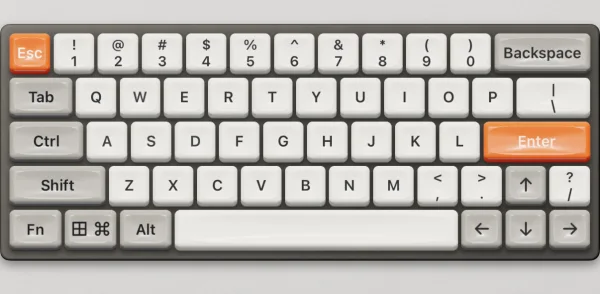
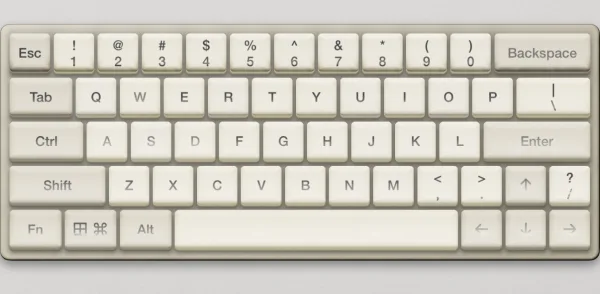
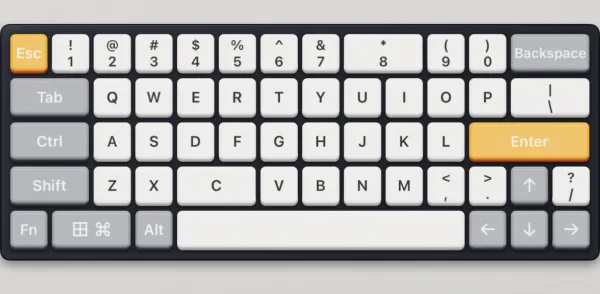
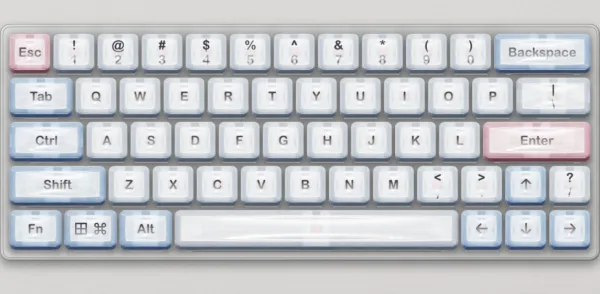
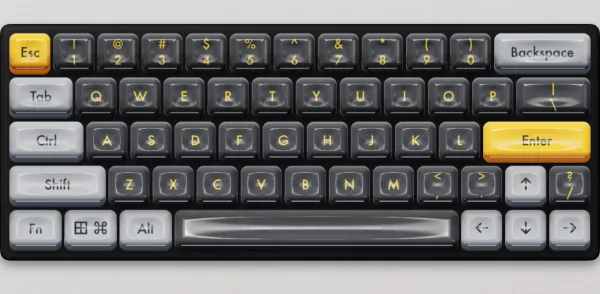
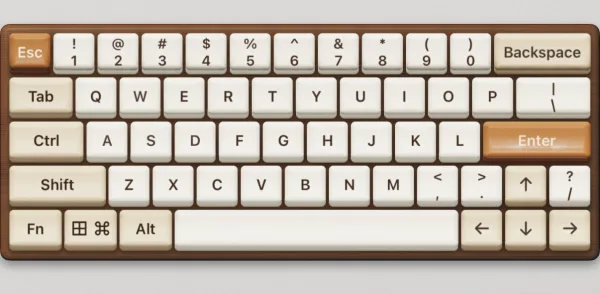
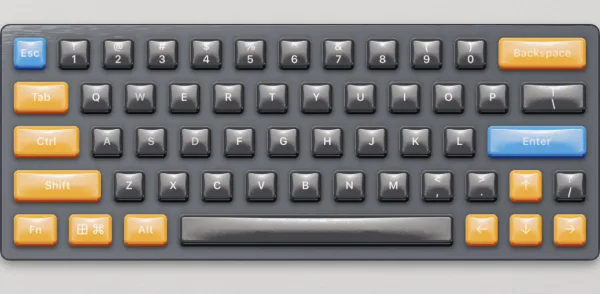
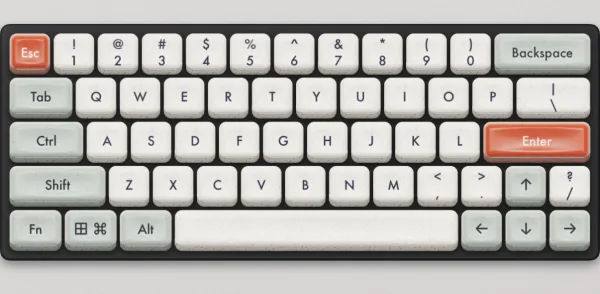
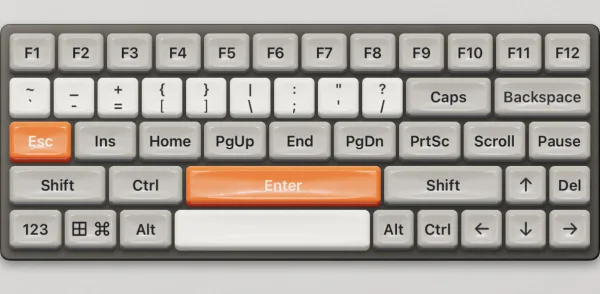
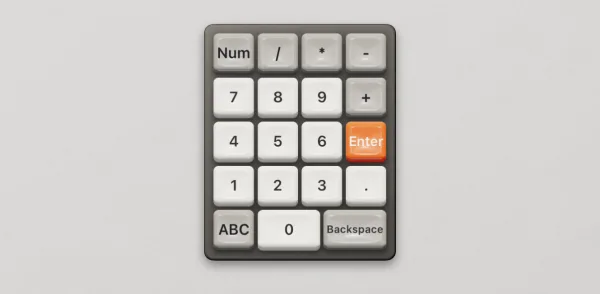
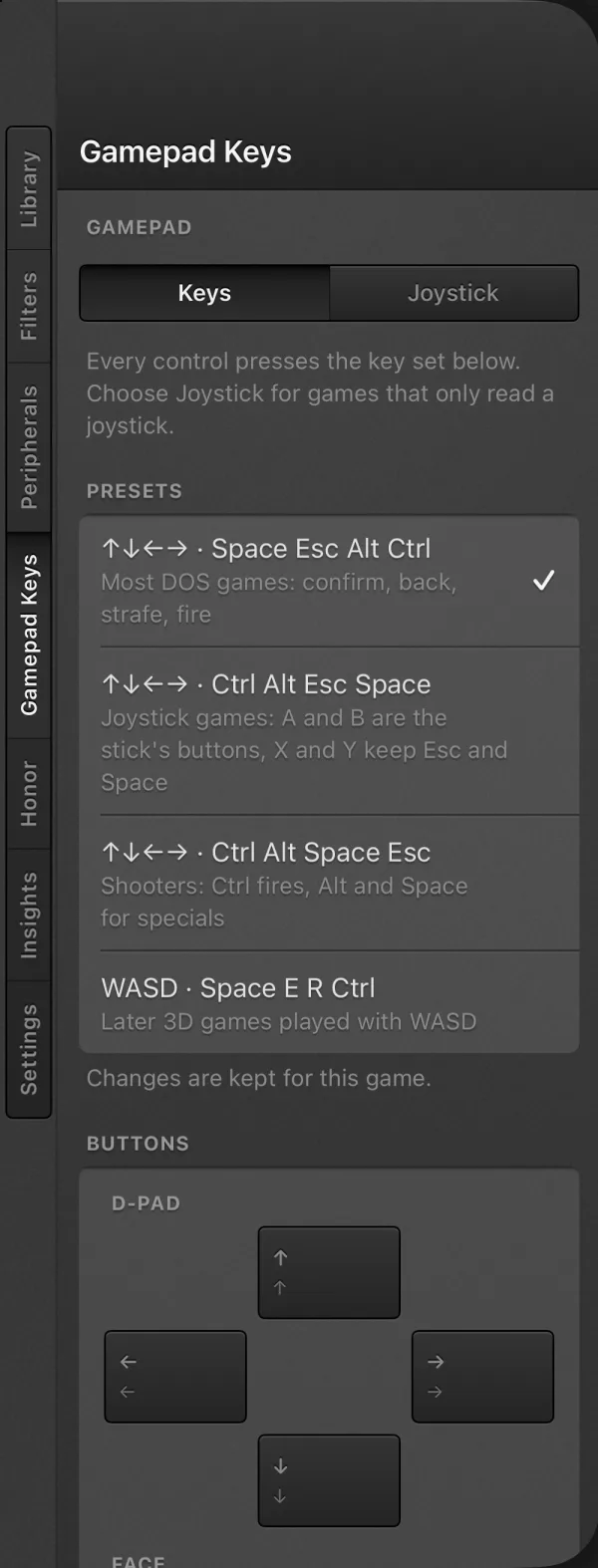
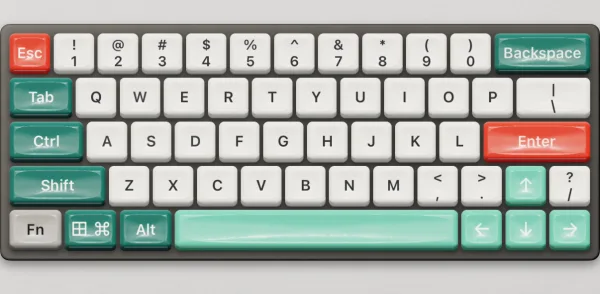
Every keyboard has the same keys in the same places; what changes is the case, the caps and how they look as they go down. Pick one on the Peripherals tab; all sixteen are pictured here.
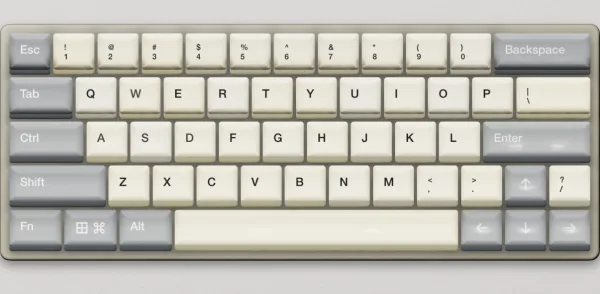
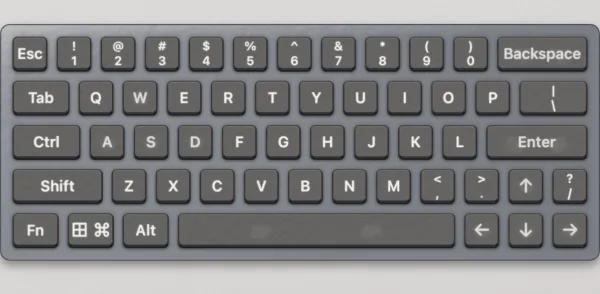
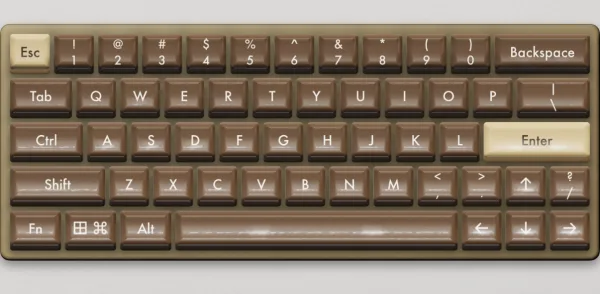
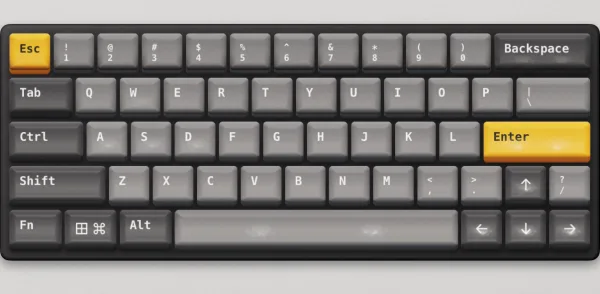
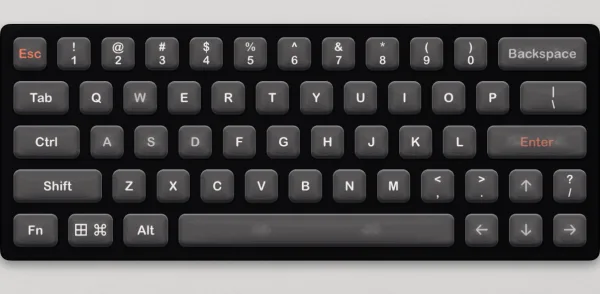
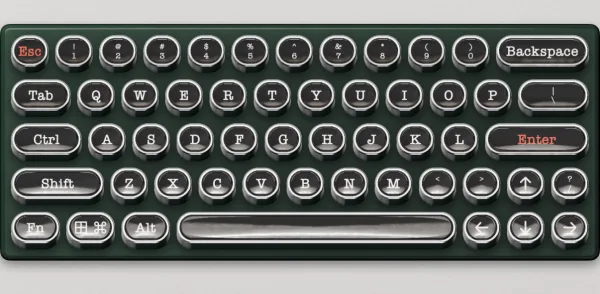
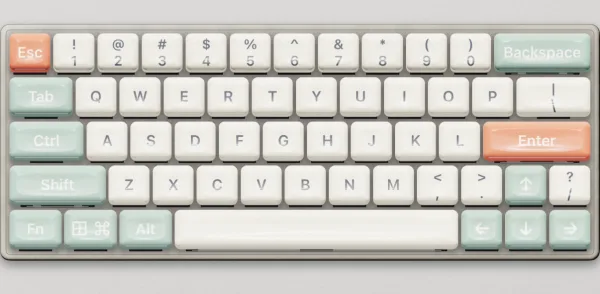
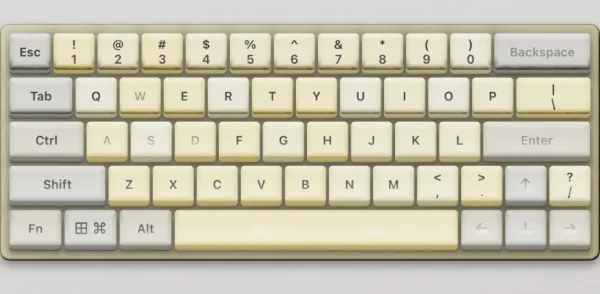
Every key a PC keyboard has
The keyboard turns through three pages, so the keys stay big enough to hit. Fn turns to the function keys and the editing block, 123 to the numeric keypad, and ABC back to the letters.
- Shift, Ctrl and Alt apply to the next key you press. Tap one twice to keep it held.
- Keys go down and spring back like real ones, and a key you hold stays held for the game.
- Esc, Enter and the arrows sit on the first page, where games need them most.
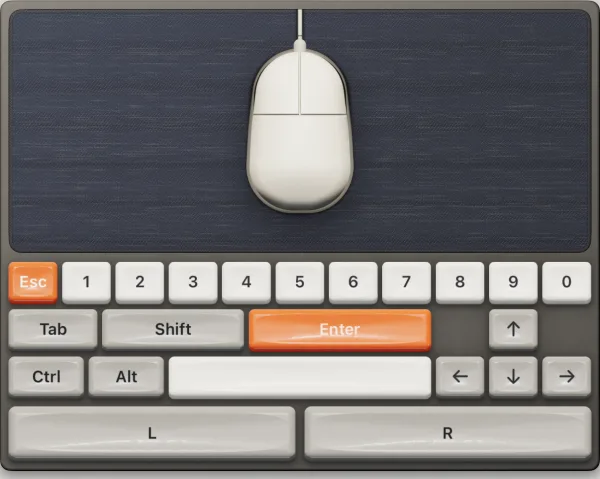
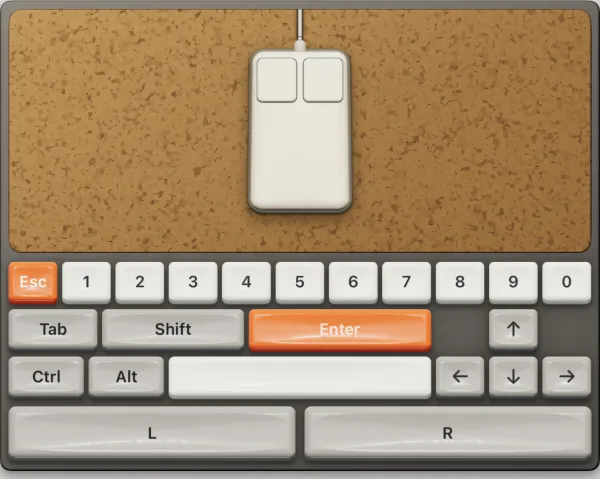
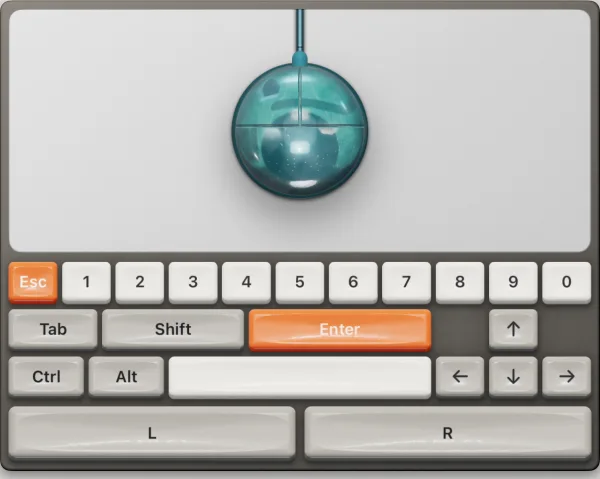
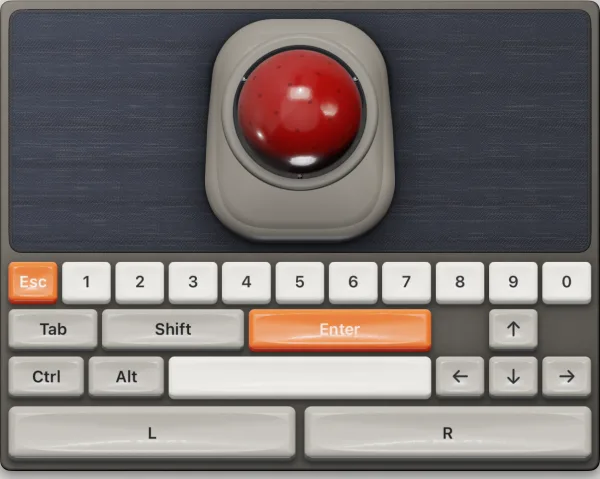
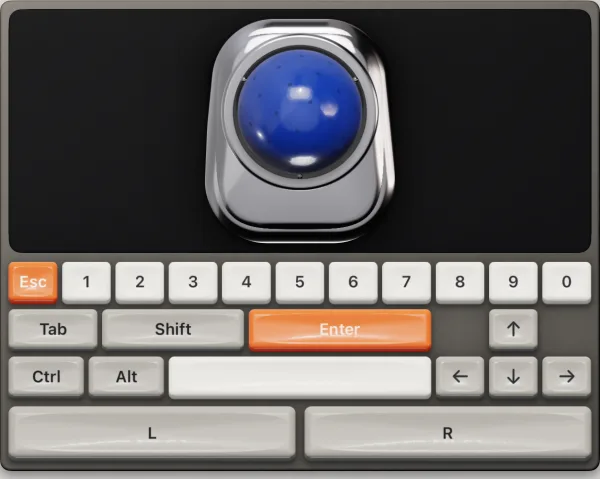
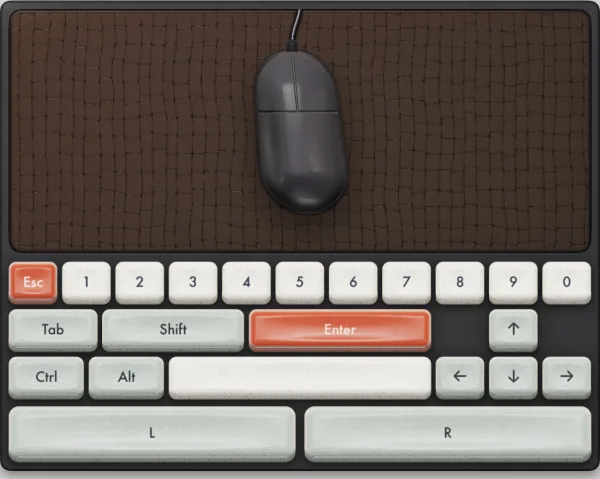
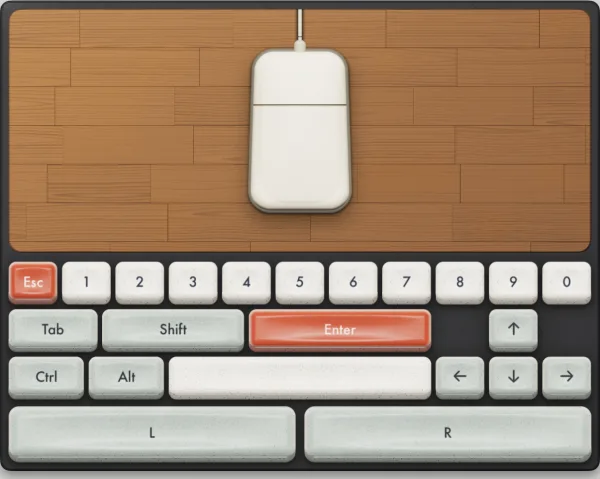
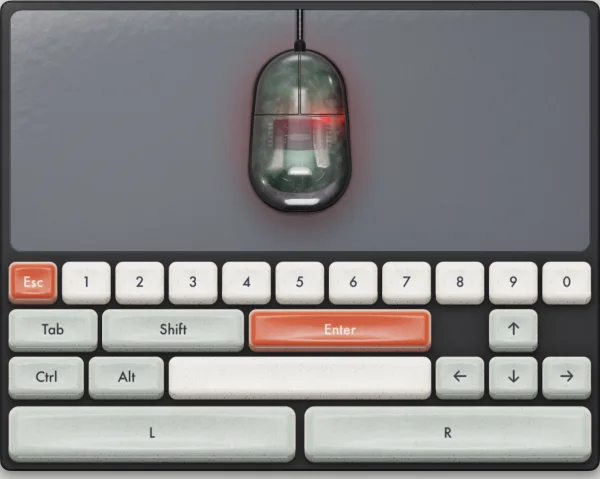
Twelve mice and trackballs
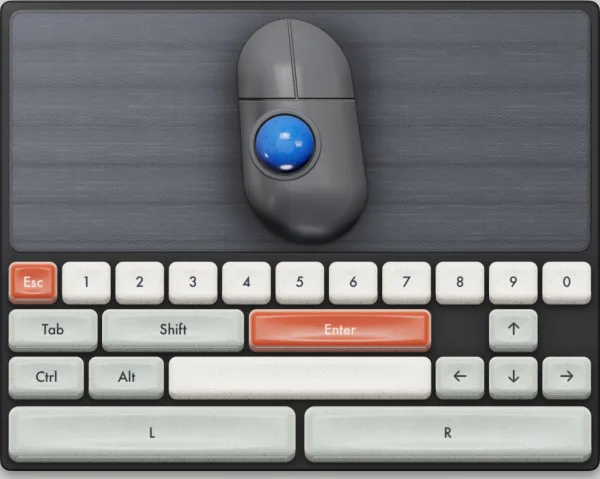
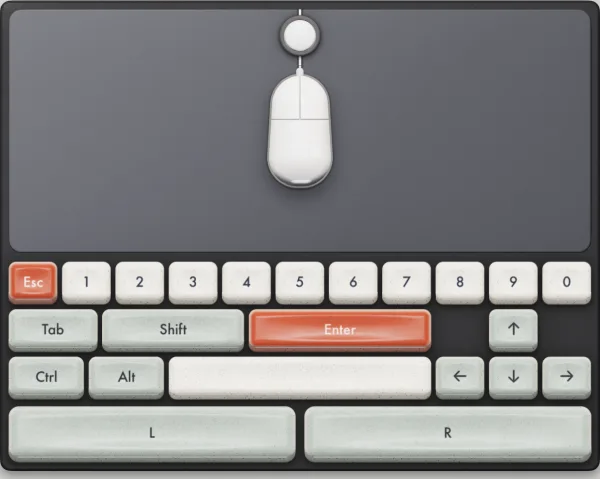
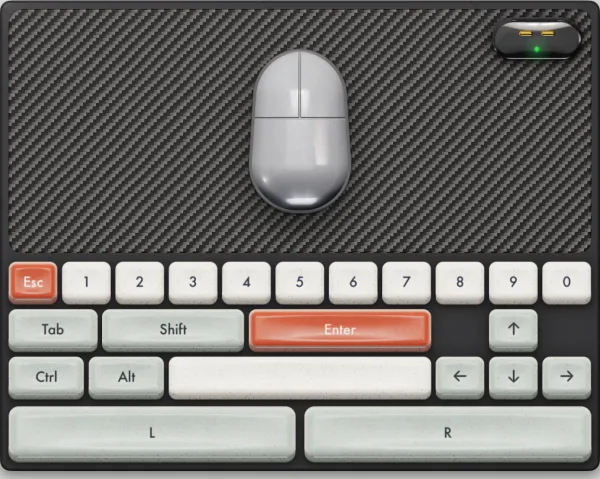
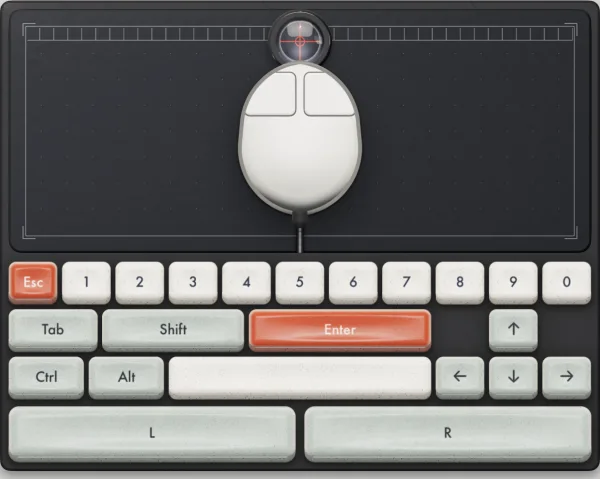
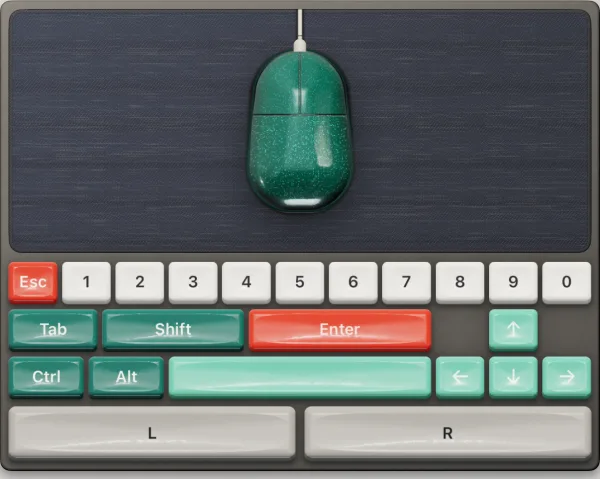
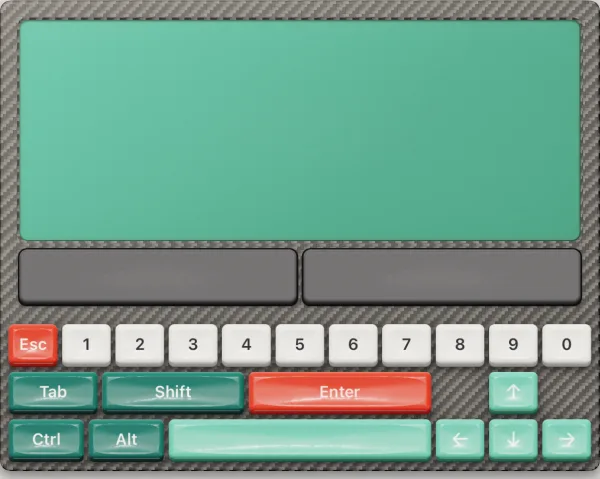
Choose a mouse and the lower half of the screen becomes a desk: the mouse on its mat, its two buttons below, and the keys games ask for most beside them.
- Push the ball mouse with one finger, and rest a second finger to its left or right to hold that button.
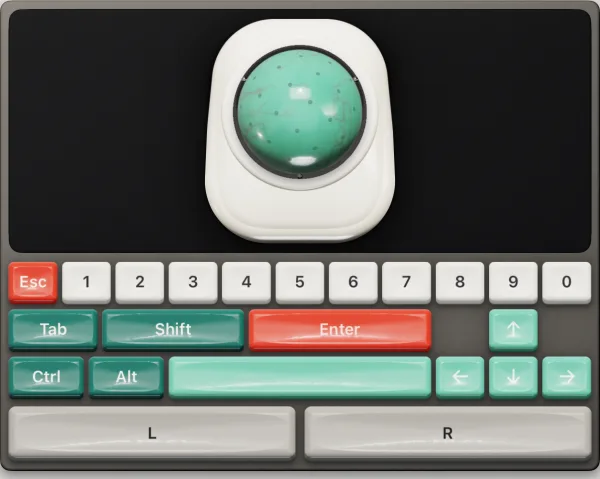
- On a trackball, drag anywhere to roll the ball.
- Esc, the number keys, Tab, Shift, Enter, Ctrl, Alt, Space and the arrows stay within reach. Hold Shift or Ctrl while you click.
- Four pointer speeds, from Slow to Very fast.
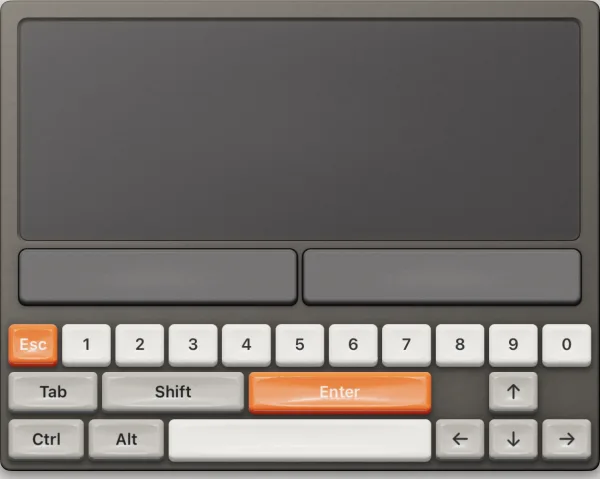
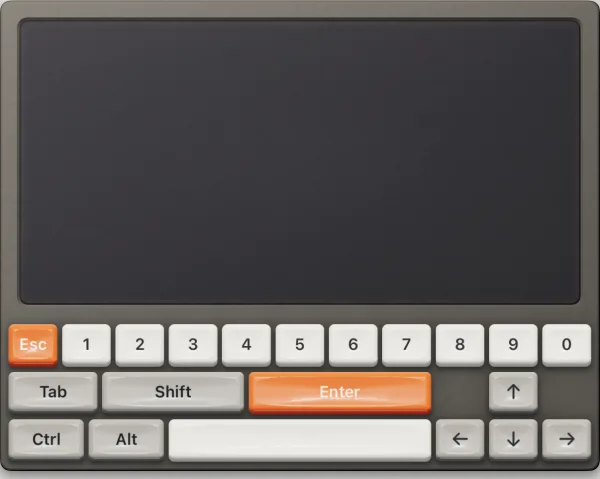
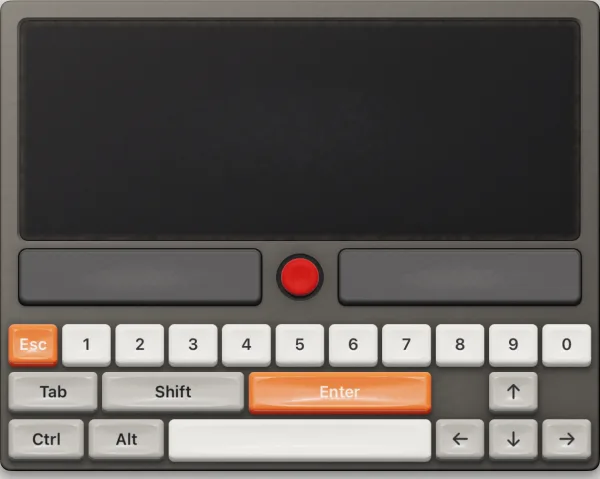
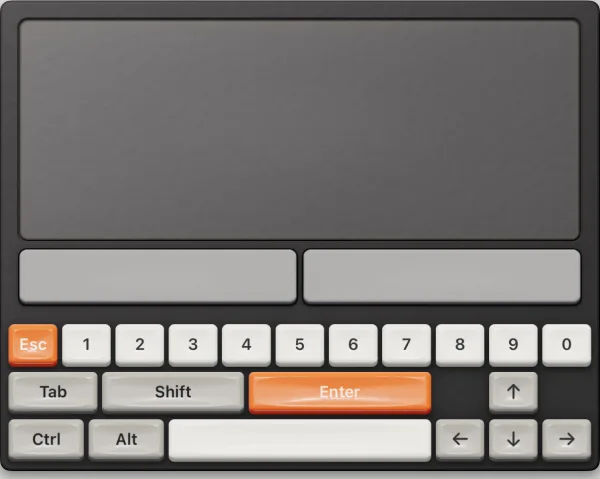
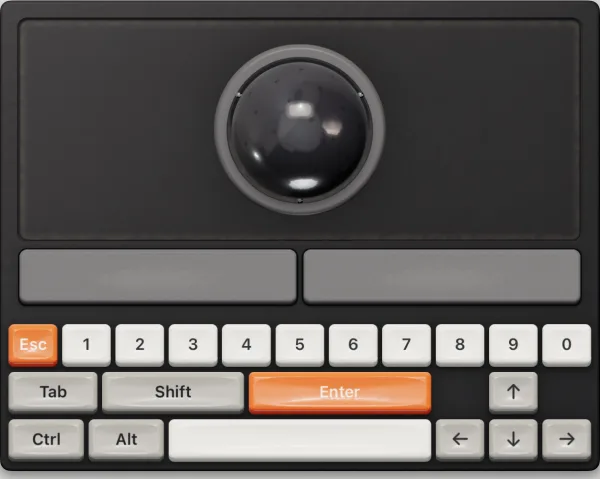
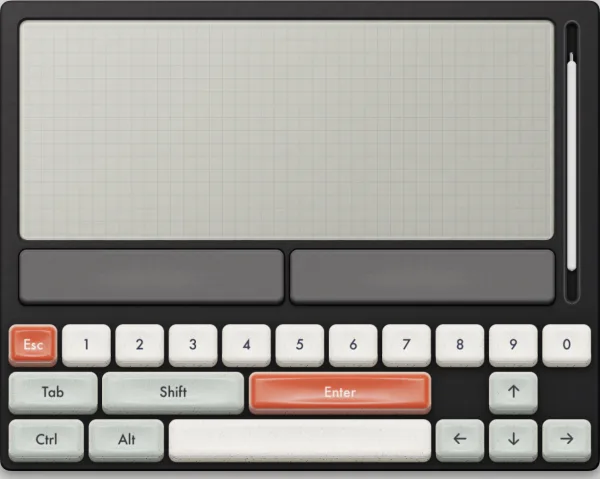
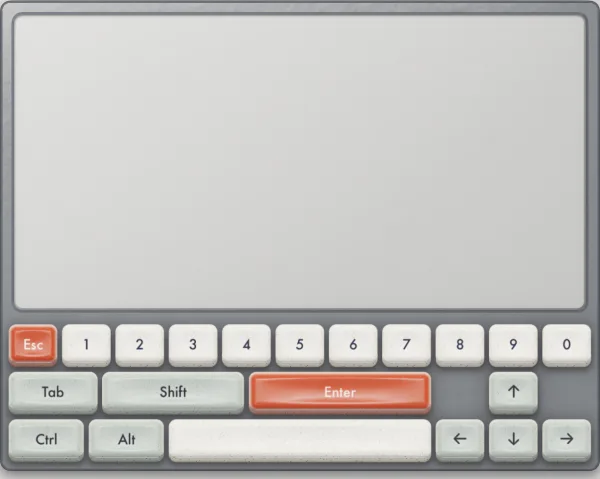
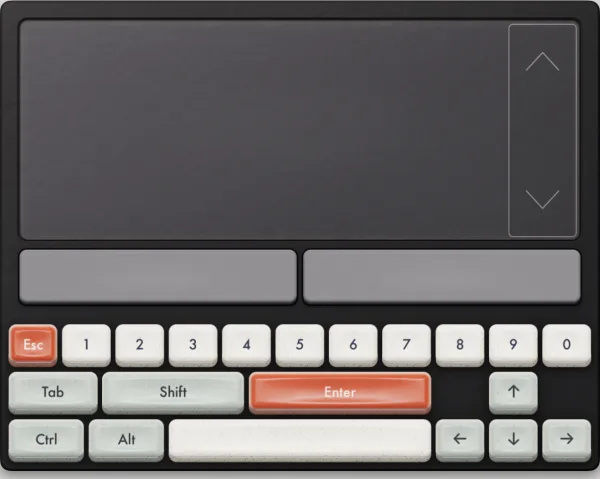
Ten trackpads
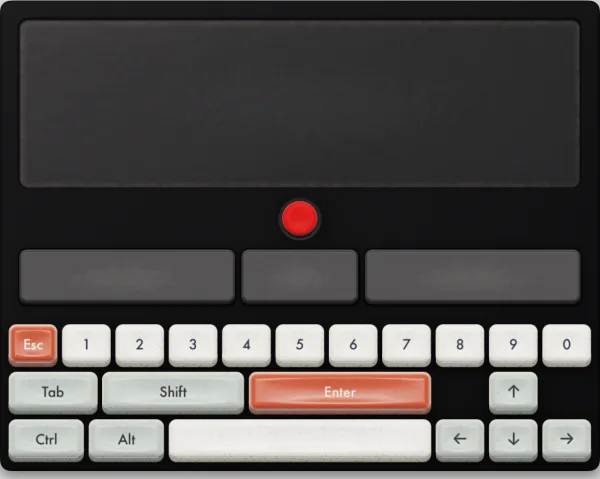
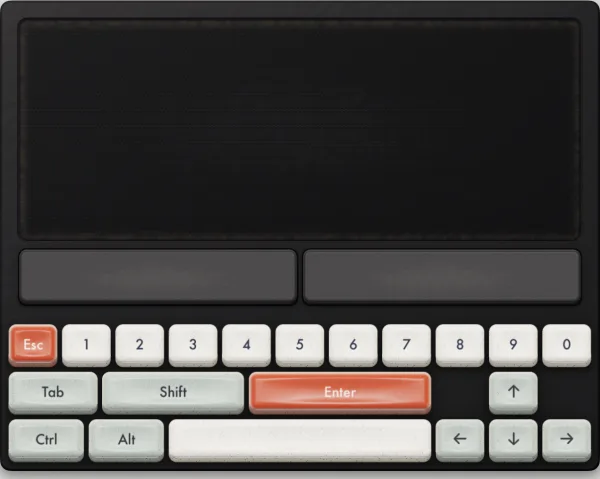
A trackpad moves the pointer the way a laptop's does: tap to click, tap with two fingers for the right button, and tap then hold to drag.
- Clickpads have two buttons along the bottom, and the business trackpad adds a pointing stick between them.
- The 1990s laptop trackball rolls under your finger. The glass trackpad has no buttons at all.
- The same quick keys sit below every pad.
- The touchpad's scroll strip scrolls with the arrow keys, and so does the pointing stick while you hold its middle button.
Switch in a tap
The … key left of MENU opens the Peripherals tab, which pictures every keyboard, mouse and trackpad; tap one to play with it. The key right of MENU flips between the gamepad and the peripheral you used last.
- Each game remembers whether you last played it with the gamepad, the keyboard, the mouse or the trackpad.
- A Bluetooth or USB keyboard types straight into the game, and a connected mouse moves its pointer.
Gamepad Keys: a key for every button
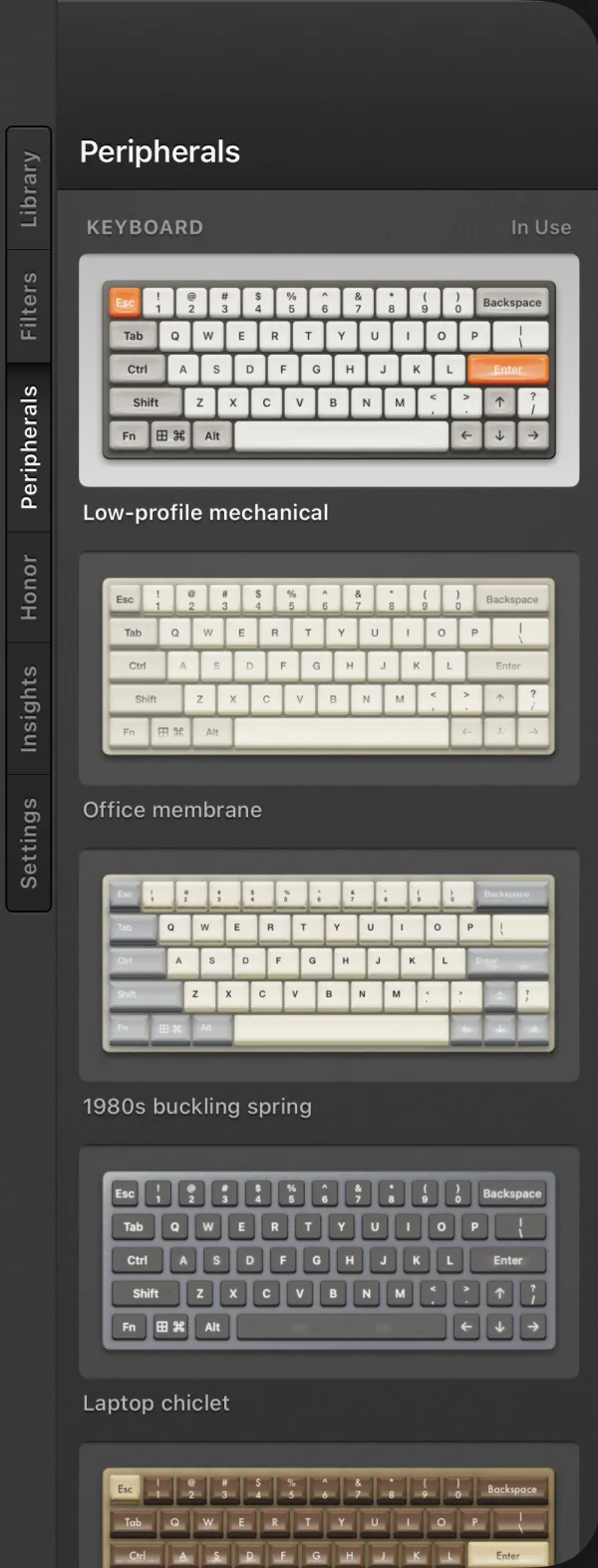
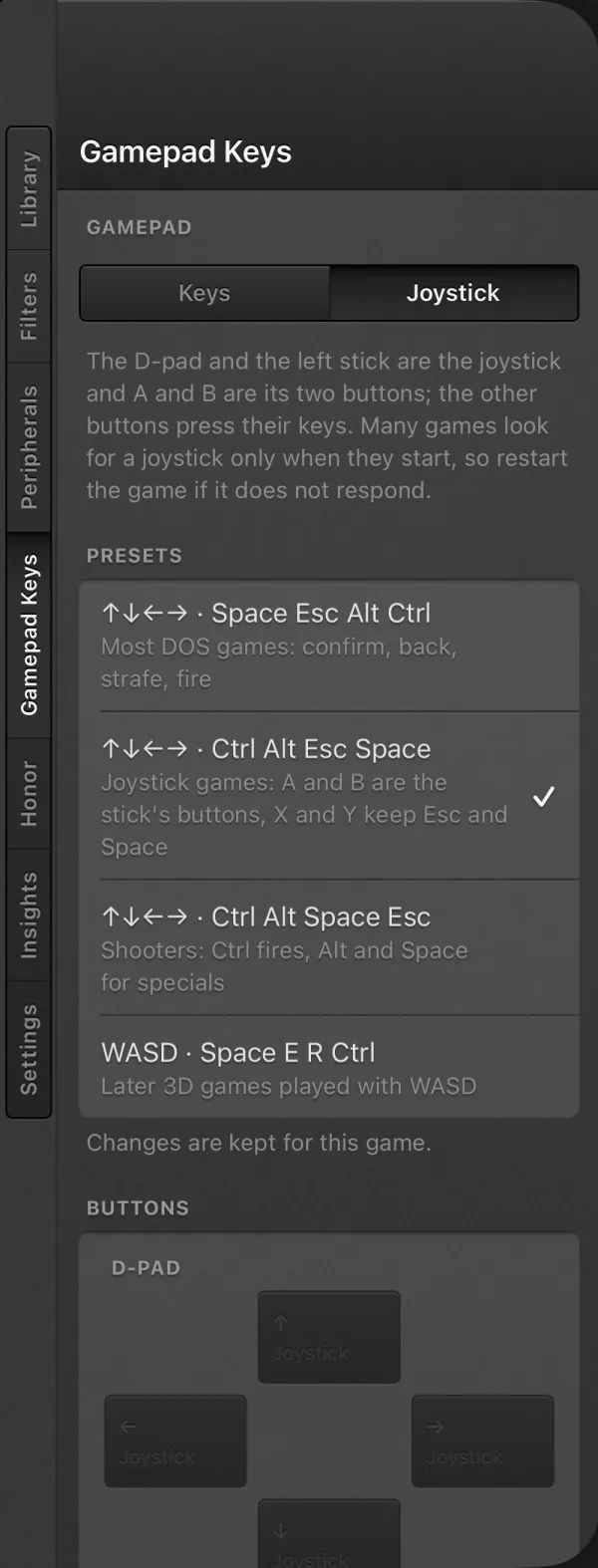
The gamepad plays keyboard games, and the Gamepad Keys tab on the Desk sets which key each control presses. Out of the box the d-pad presses the arrows, A is Space, B is Esc, X is Alt, Y is Ctrl, Start is Enter and Select is Shift. Every game keeps its own map.
- Apply a preset: the standard keys, joystick games, shooters (Ctrl fires) or WASD for later 3D games.
- Or pick any control on the pictured gamepad, including both sticks and the shoulders, and give it a key from the whole keyboard: letters, digits, modifiers, function keys, navigation keys, symbols or keypad.
- A connected controller presses the same keys, and its two sticks can press keys of their own.
- For a game that only reads a joystick, switch Gamepad from Keys to Joystick at the top of the tab. The d-pad and the left stick become the stick, A and B its two buttons, and the other buttons keep their keys. Many games look for a joystick only as they start, so restart the game after switching.
Make them your own
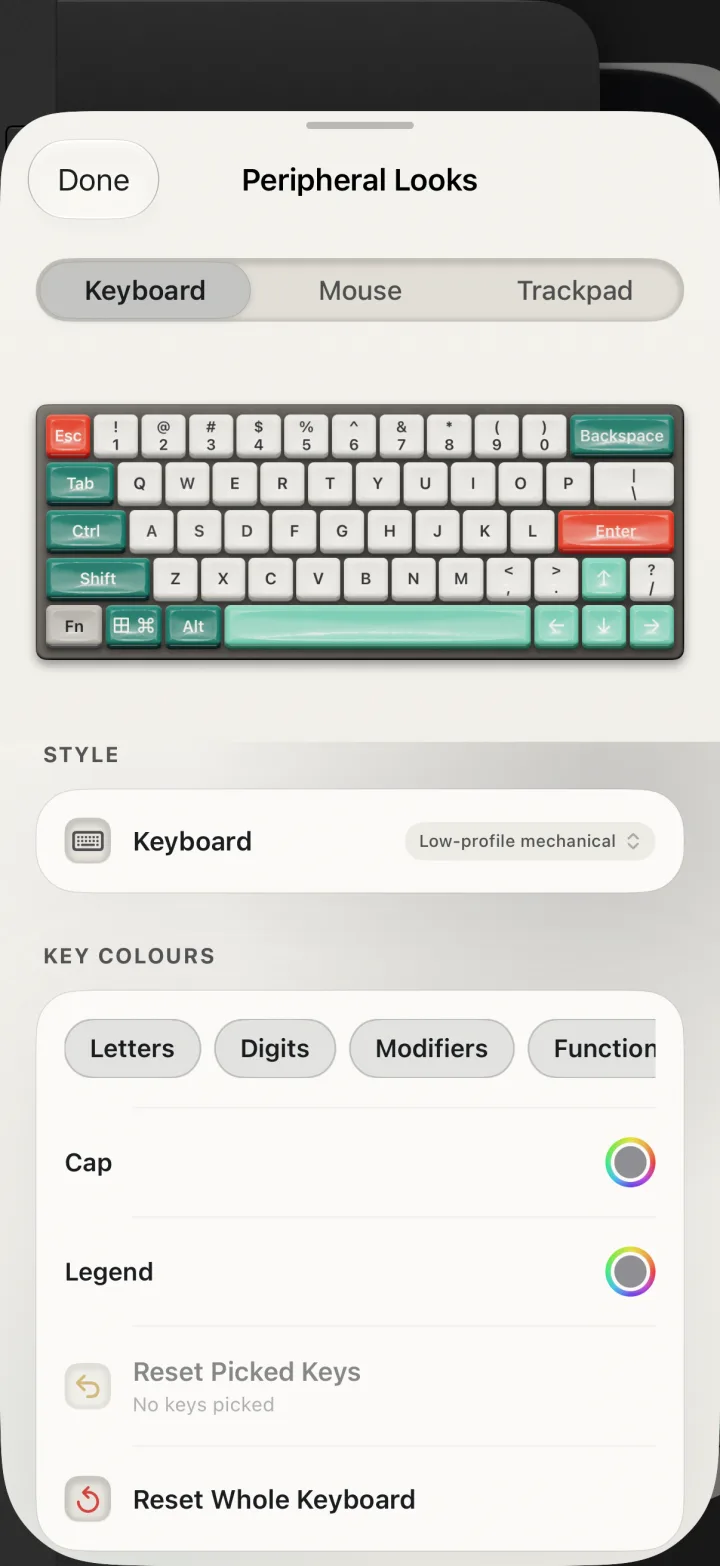
Peripheral Looks, at the end of the Peripherals tab, restyles what you play on. Every change shows at once on a preview you can press, and every game uses it.
- Give any key its own cap and legend colours, or colour a whole group at once: letters, digits, modifiers, function keys, or arrows and editing keys.
- Dress a mouse or trackball shell, and the ball, in glossy resin, matte, marble, translucent, metallic flake or chrome, in any colour.
- Give a trackpad's surface and border a finish such as frosted glass, brushed titanium or carbon fibre.
- Key colours stay when you change keyboard, and Style Default puts any part back the way its design made it.
Save states keep the whole game
A save state holds the game's drive along with the PC, so loading one also brings back the game's own save files from that moment.
- Saves a game writes itself stay on its own drive, apart from every other game's.
- Save and load from the in-game menu, as with any other system.
DOS questions
Which games can I play?
Games made for DOS. Zip the game's folder and import it, and Retropa finds the program that starts it. Archives holding only Windows programs are not DOS games. A game Retropa has not tried yet still starts, with a note on screen saying so.
Do I need a copy of DOS or a BIOS file?
No. Everything the PC needs to start is built into Retropa.
Does Retropa come with DOS games?
No. Import only games you have the right to use. 仙剑奇侠传 and DOOM appear on this page to show how DOS games play in Retropa.
Can I use a real keyboard and mouse?
Yes. A Bluetooth or USB keyboard types into the game, and a connected mouse moves the pointer. A game controller presses the keys set on the Gamepad Keys tab, the same as the on-screen gamepad.
Can I change which keys the gamepad presses?
Yes. On the Gamepad Keys tab, apply a preset or choose the key for each button, the d-pad and both sticks. Each game keeps its own map, and Reset to Default puts it back.
Can I play games that need a joystick?
Yes. On the Gamepad Keys tab, switch Gamepad to Joystick and the d-pad, or a controller's left stick, is the game's joystick, with A and B as its buttons. Restart the game after switching, since many games look for a joystick only when they start.
Do DOS games need Retropa Plus?
DOS is part of Retropa Plus, like the arcade and PlayStation. You can try it first, and Retropa Plus keeps it unlocked, with every keyboard, mouse and trackpad. Every handheld and console system except PlayStation stays free.
A game says it needs expanded memory. What now?
Choose Restart with EMS when Retropa asks. The game starts again with expanded memory, and Retropa remembers that for the game.
仙剑奇侠传 (The Legend of Sword and Fairy) © Softstar Entertainment Inc. DOOM © id Software LLC, a ZeniMax Media company. Sound Blaster is a trademark of Creative Technology Ltd. The game pictures are screenshots of each game running in Retropa, shown only to demonstrate that it runs; Retropa is not affiliated with these companies.